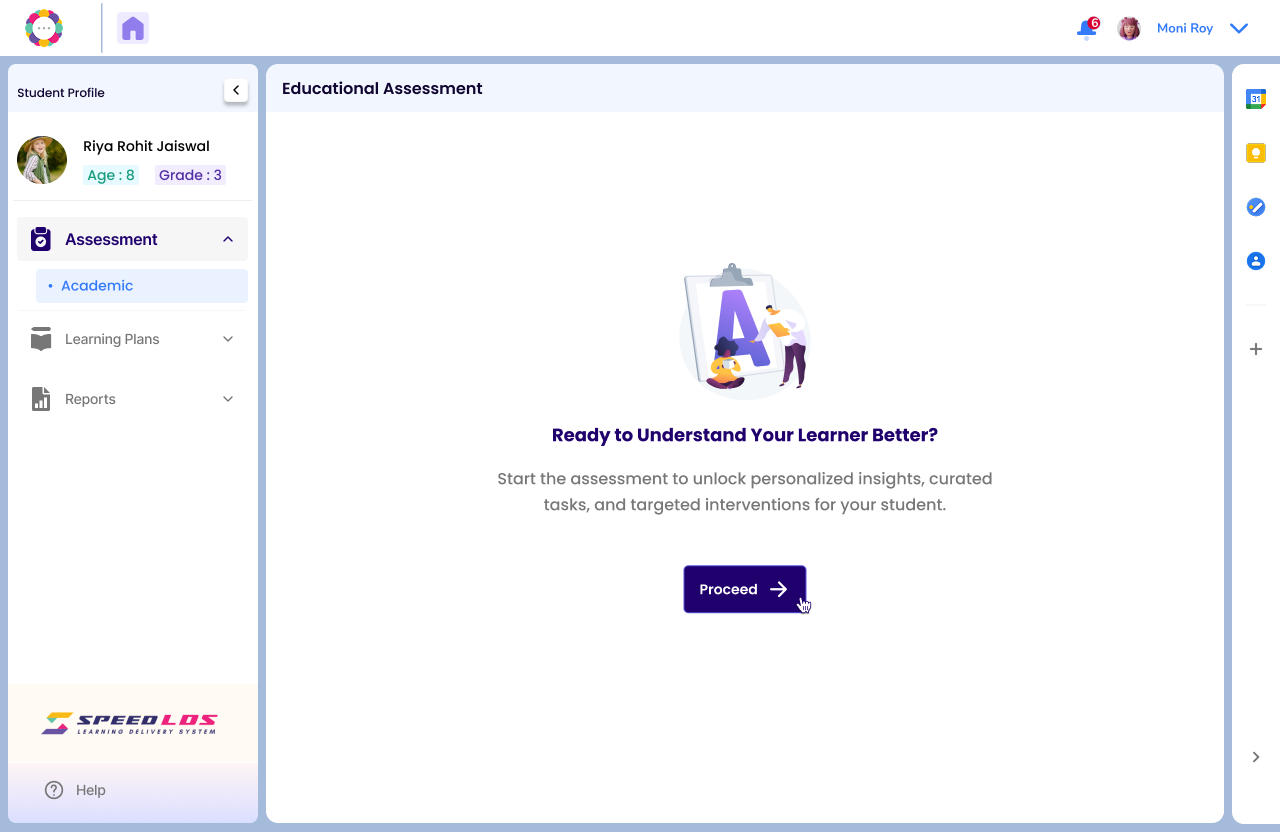
From the Student Dashboard, click on the name of the student you wish to assess. This will open the student’s profile page.
Step 2: Begin the Assessment
On the left panel of the profile, click “Assessment.”
On the next screen, click “Proceed.”
Then select “Child Rating” to launch the assessment.
You will now be taken to the Child Rating page, where the child can begin responding to age-appropriate questions and activities.
Step 3: Pre-Assessment Checks
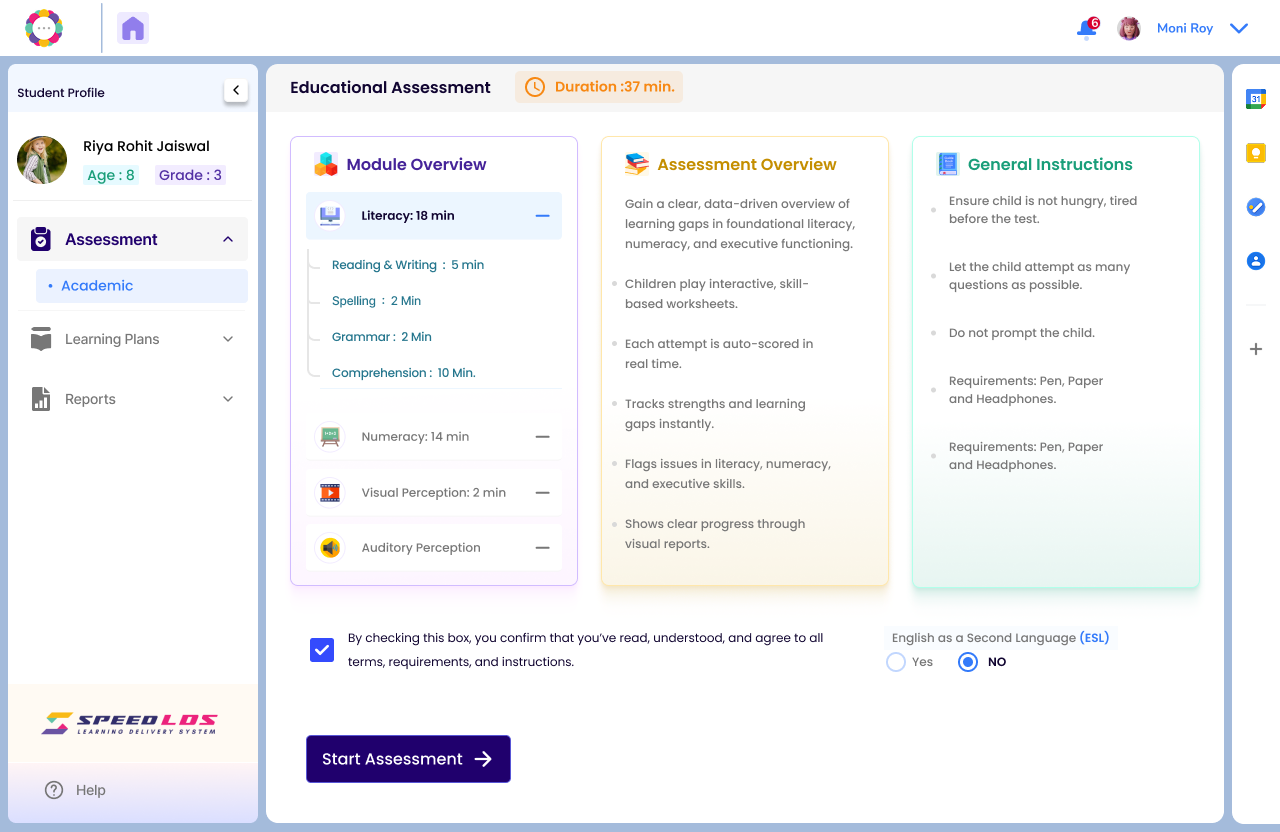
Before starting, complete the following:
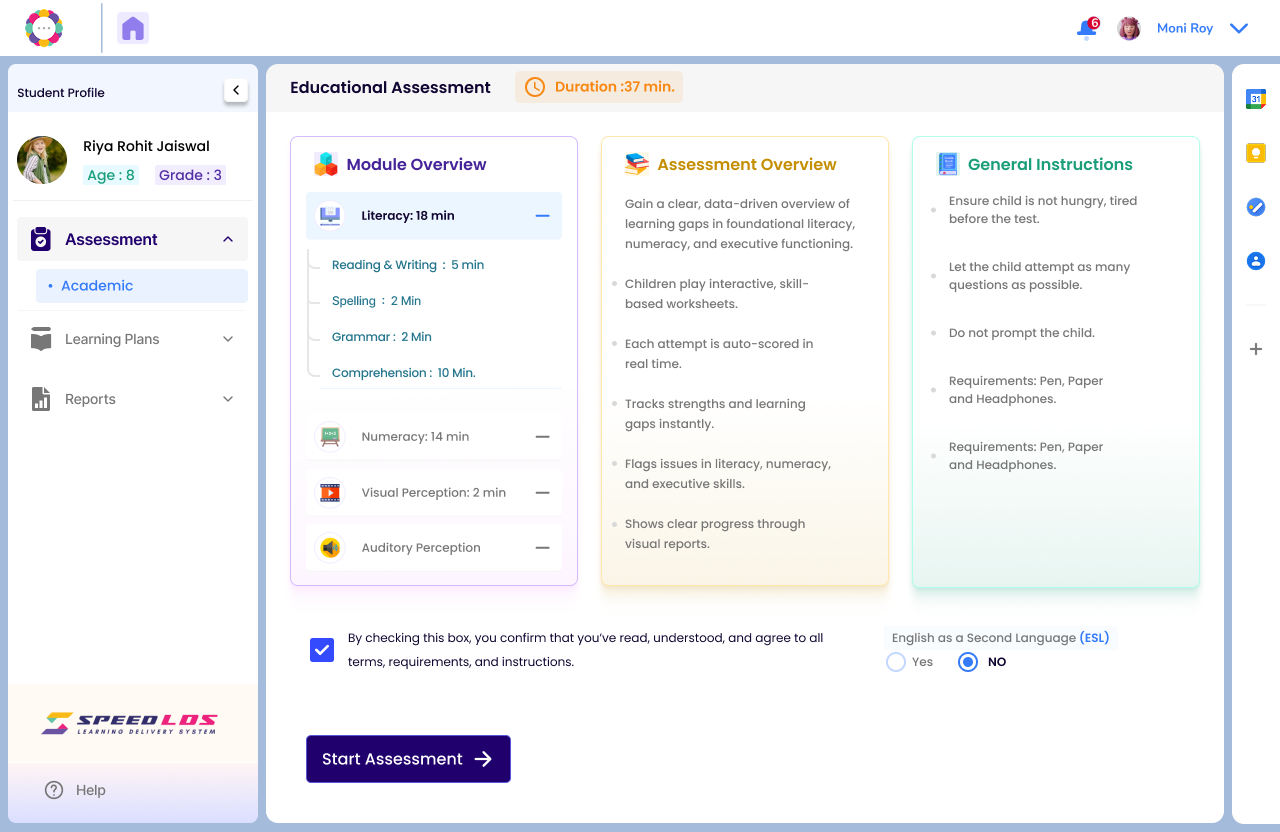
Checkbox – Confirms that the teacher has read and acknowledged all instructions.
ESL Option – Select this if the student has English as a Second Language.
Click “Start Assessment” to enter the interactive, timed worksheet environment.
Step 4: During the Assessment
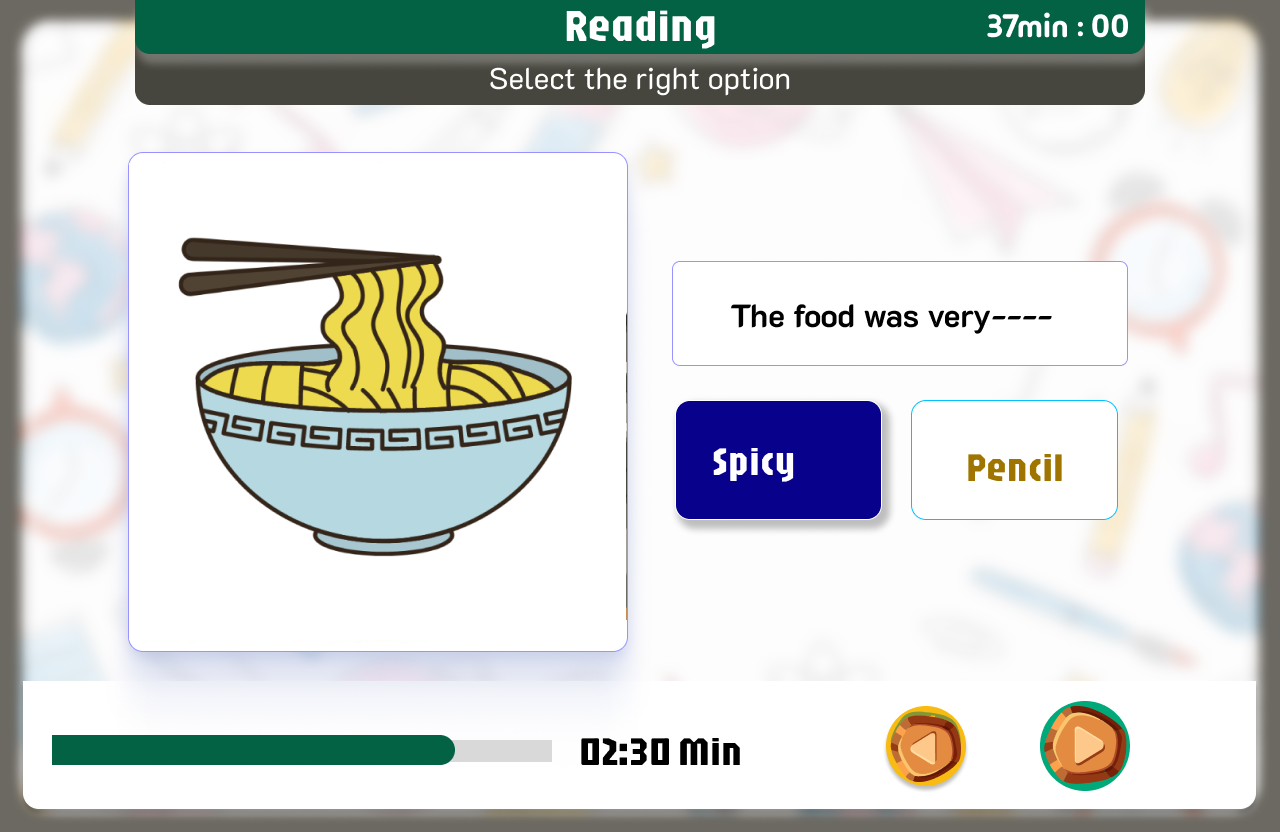
Age-appropriate worksheets will appear on-screen.
The student should read each question carefully and select the correct answer.
🔊 Some questions will include audio clips to assess auditory perception. Ensure the student is using headphones or in a quiet setting.
Step 5: Pause and Resume
If the student cannot complete the assessment in one sitting:
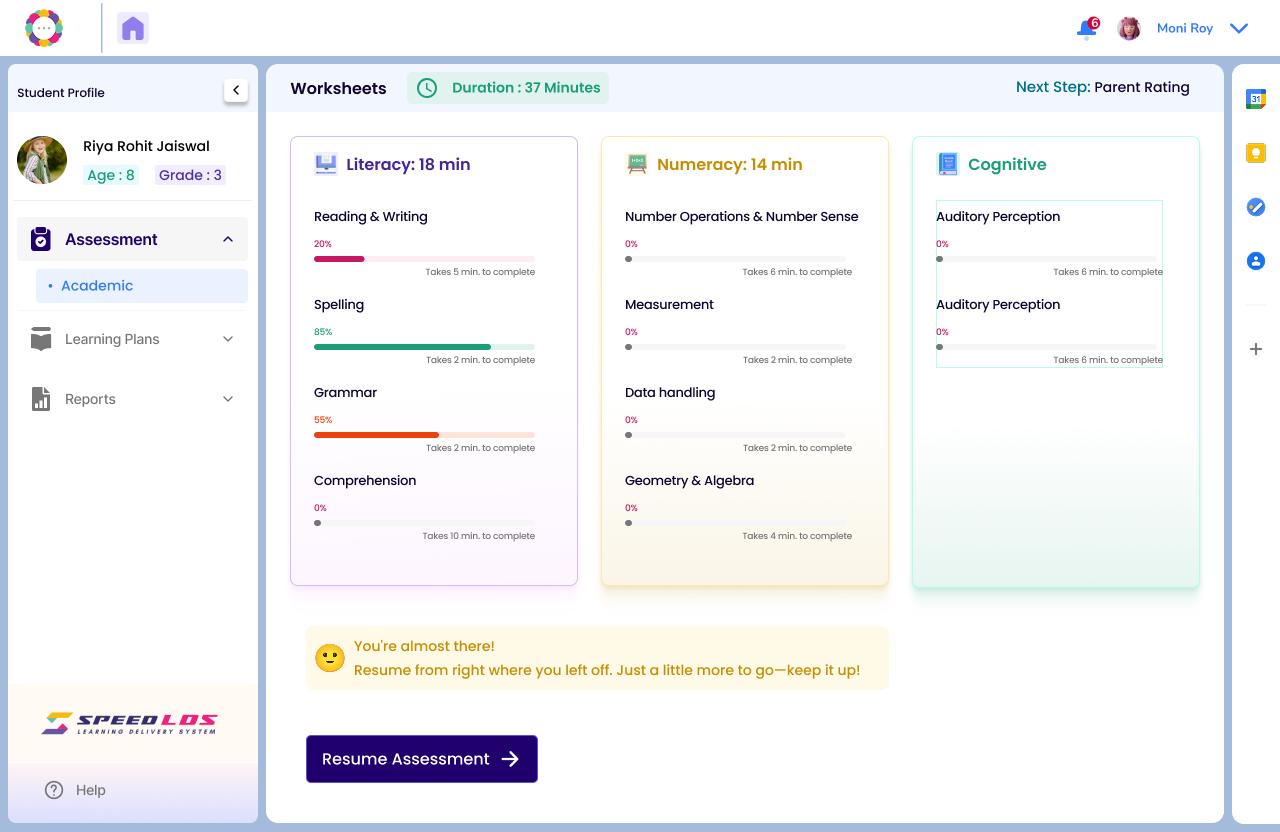
Click “Pause” to take a break.
When ready, click “Resume Assessment” to continue from where they left off.
SpEd Junior Recommendation
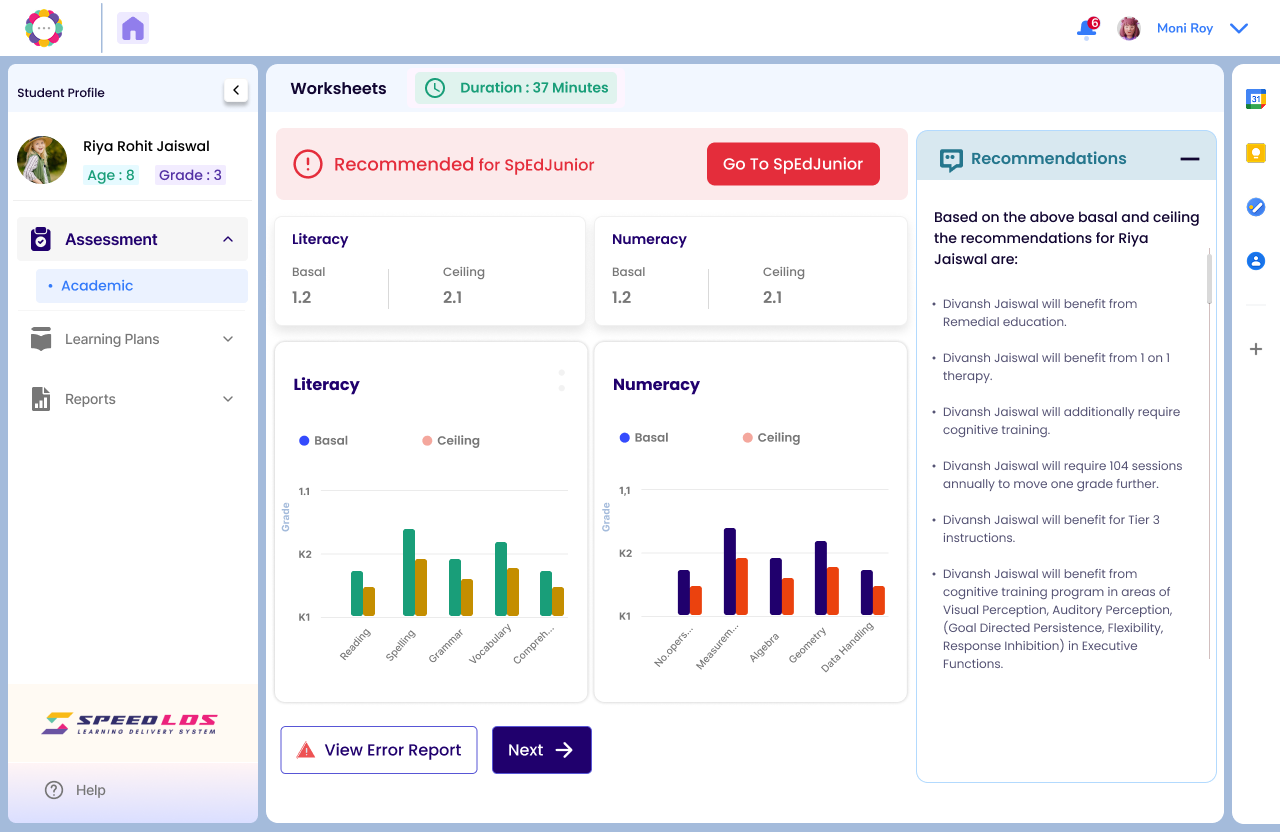
If a “Recommended for SpEd Junior” message appears, it means the child would benefit from the SpEd Junior Assessment. Teachers may guide the child to take that version instead.
Step 6: Review Assessment Results
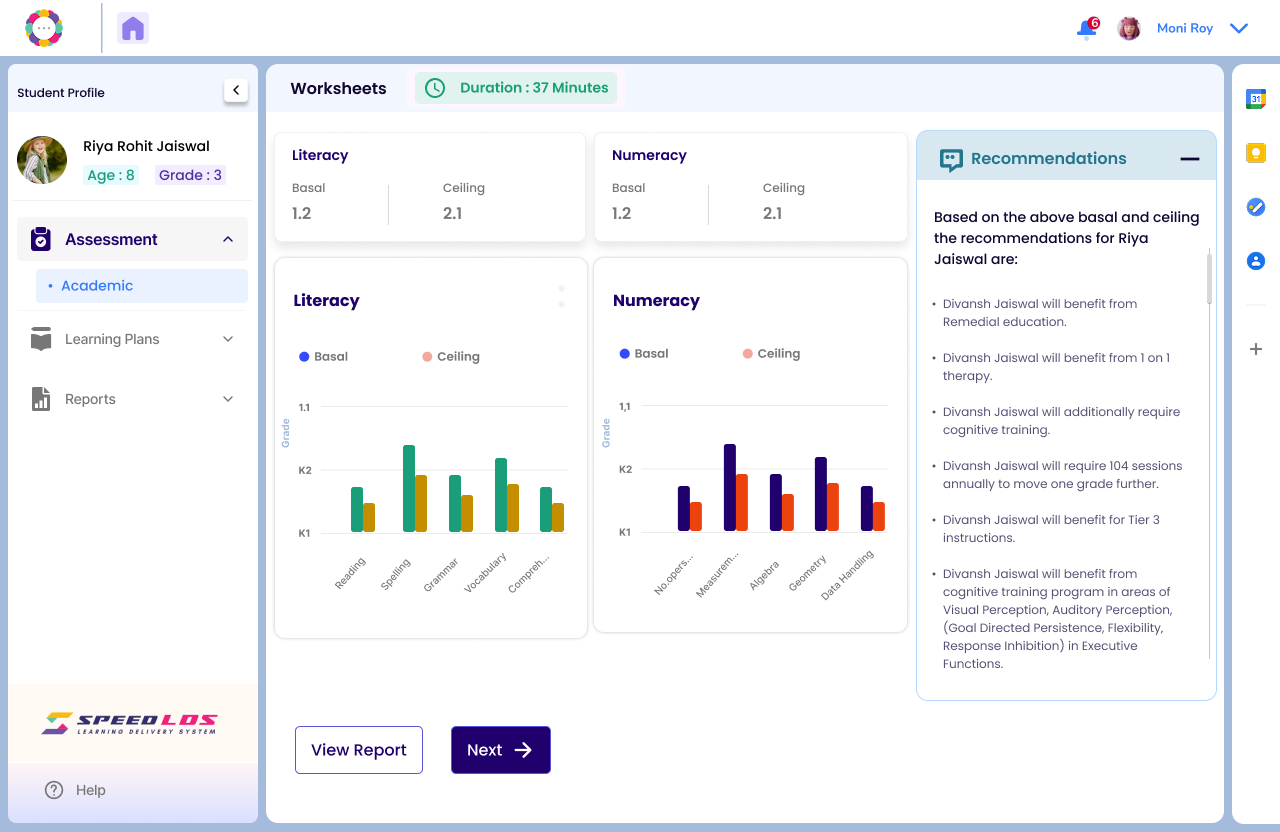
Upon completion, the student’s profile will display a graphical summary of scores across domains.
Click on any bar in the graph to explore detailed responses and system-generated recommendations.