Assessment – Expert Review

Step 1: Select the Student

From the Student Dashboard, click on the name of the student you want to review. This will open the student’s profile page.

Step 2: Open the Assessment

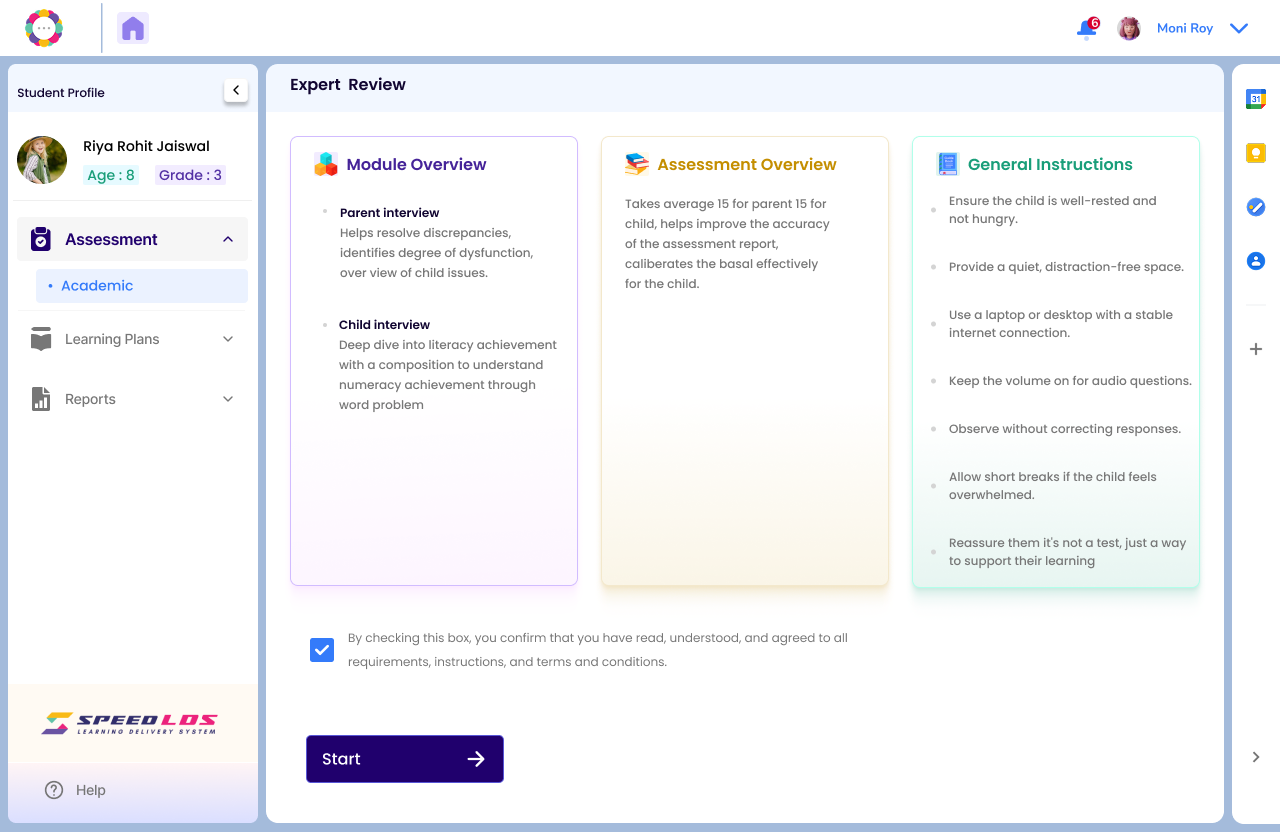
  • Click on the “Assessment” tab from the left panel.
  • On the Assessment page, click on the “Expert Review” option.

Step 3: Start the Expert Review

  • Once the Expert Review section loads, click the “Start” button.
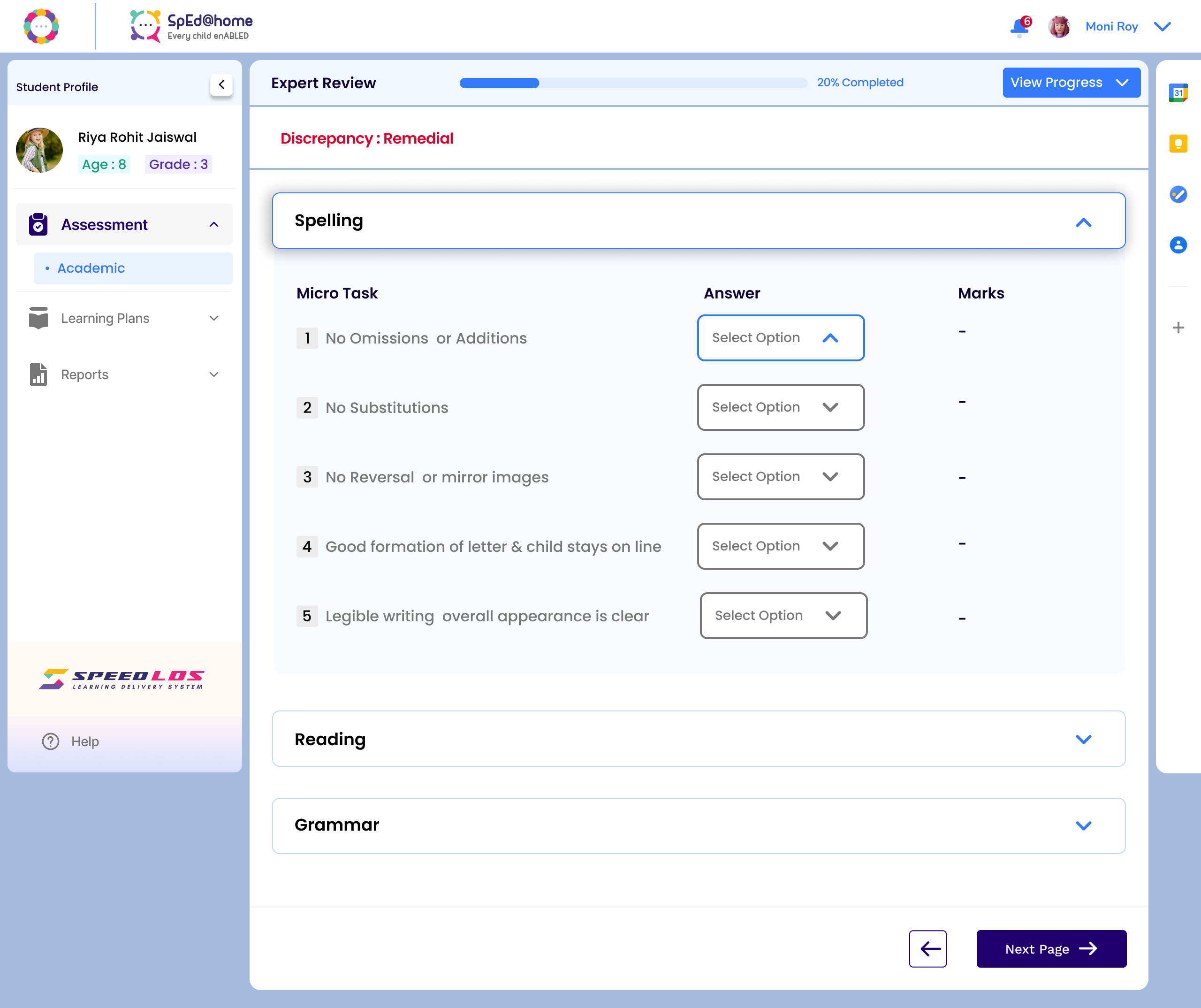
  • Fill in all required observations, professional inputs, and insights based on your sessions and findings.
  • After completing all fields, click “Submit.”

Step 4: Submission and Status
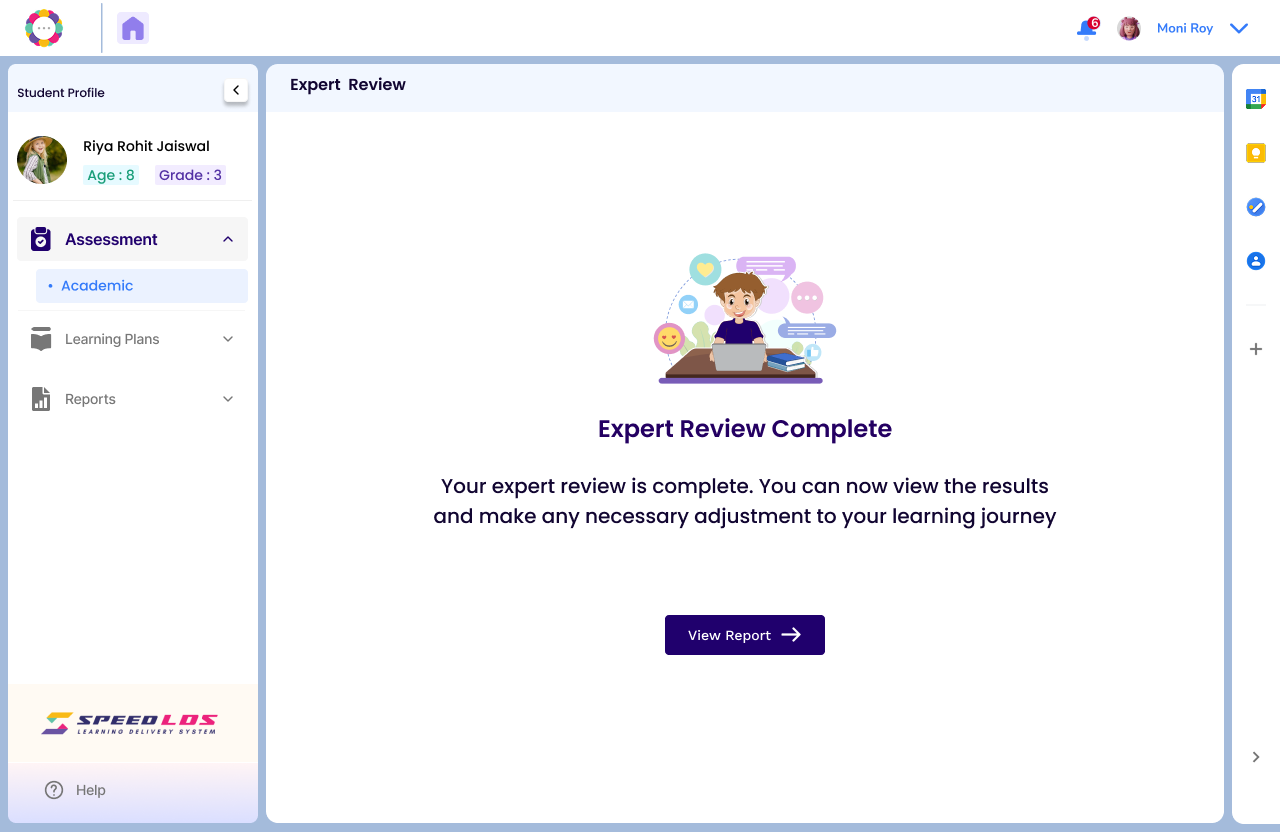
  • Once submitted, the status will update to “Expert Review Completed.”
  • You can now access the complete report under the “Report” section on the student’s profile page.