As an Admin, you have full control over managing coaches within the school portal including adding, editing, assigning roles, and removing them.
Who is a Coach?
A Coach refers to any teacher, therapist, or specialist assigned to work directly with students. This could include:
Special Educators
Occupational Therapists
Academic Support Teachers.
Subject matter Teachers
Coaches are responsible for implementing learning plans, conducting assessments, delivering intervention sessions, and tracking student progress on the platform.
Coach Roles and Rights
Coaches can be granted access to different features based on the permissions set by the Admin. These may include:
Functionality
Access Rights (Configurable)
View & update student profiles
✅ Yes
Conduct assessments
✅ Yes (if enabled by Admin)
Create/edit learning plans (IEP/ICP/ITP)
✅ Yes
Schedule sessions
✅ Yes
Access teaching resources
✅ Yes
Add or manage other coaches
❌ No (Admin only)
Access analytics or dashboards
✅ Partial or Full (based on role assigned)
Add a coach
Step 1: Access the Coach Section
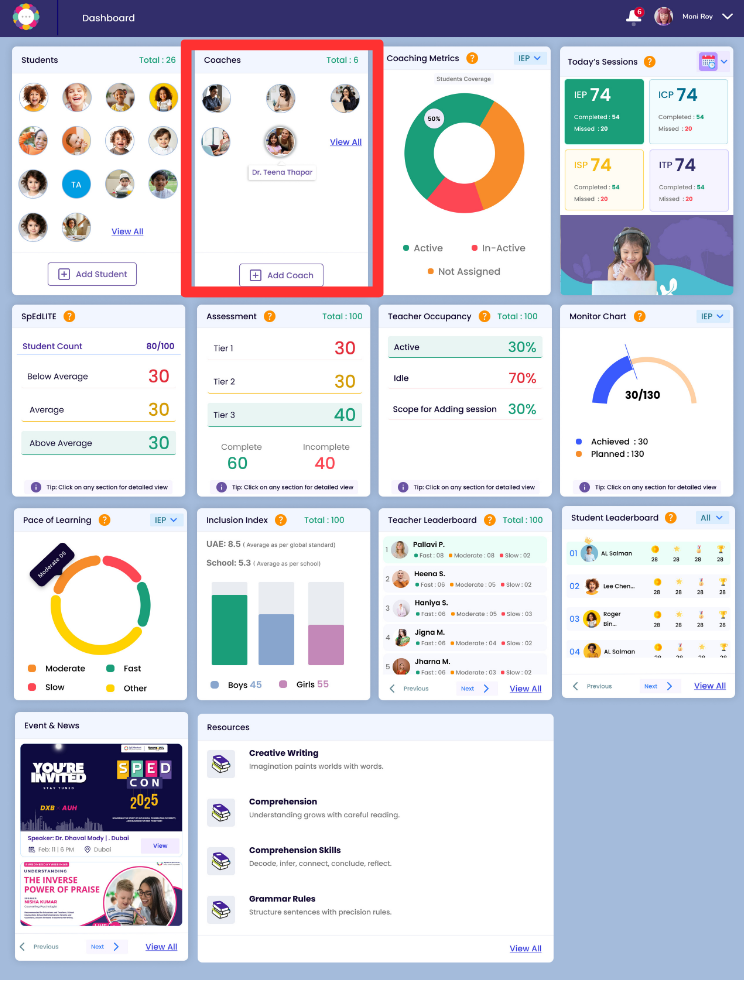
From the dashboard, click on the section labeled “Coaches.”
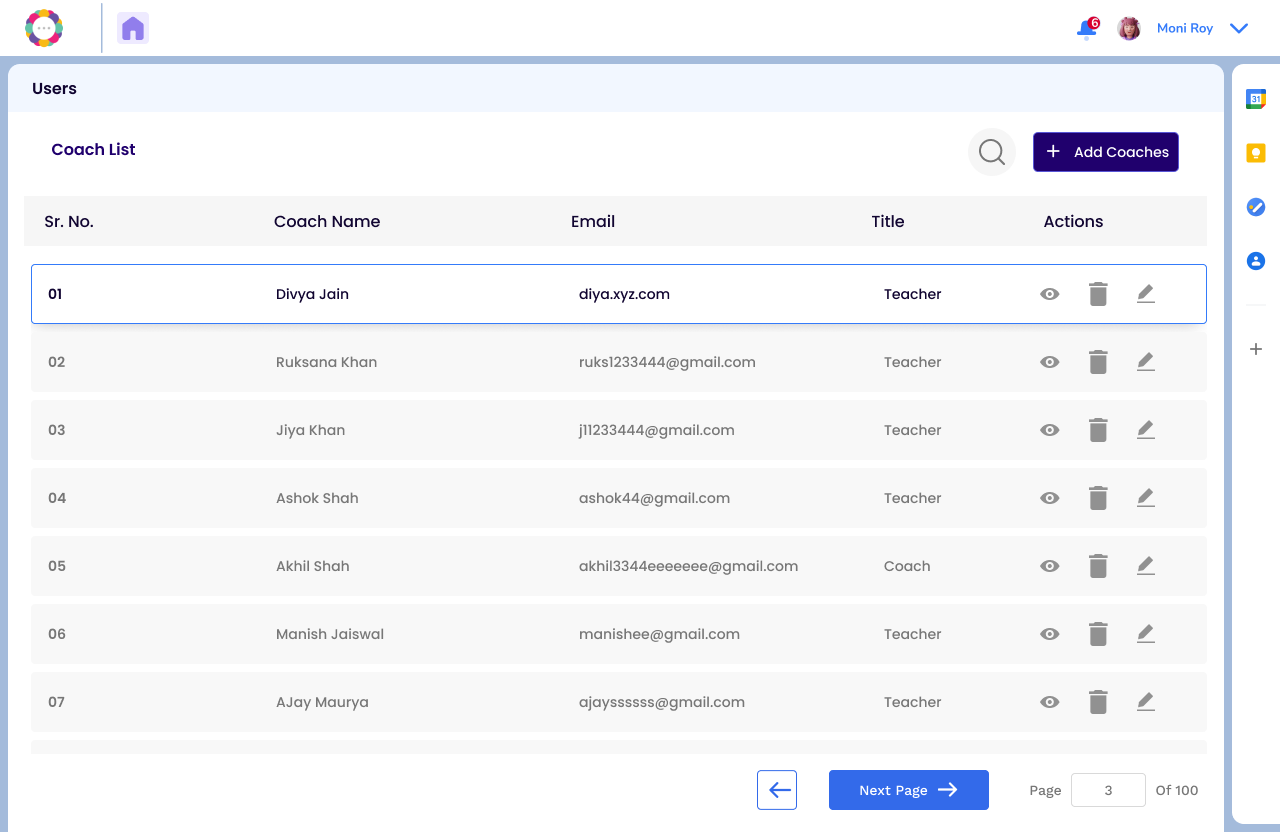
Then click “View All” to open a list of all coaches added to your portal.
Step 2: Add a New Coach
Click the “Add Coach” button on the top right.
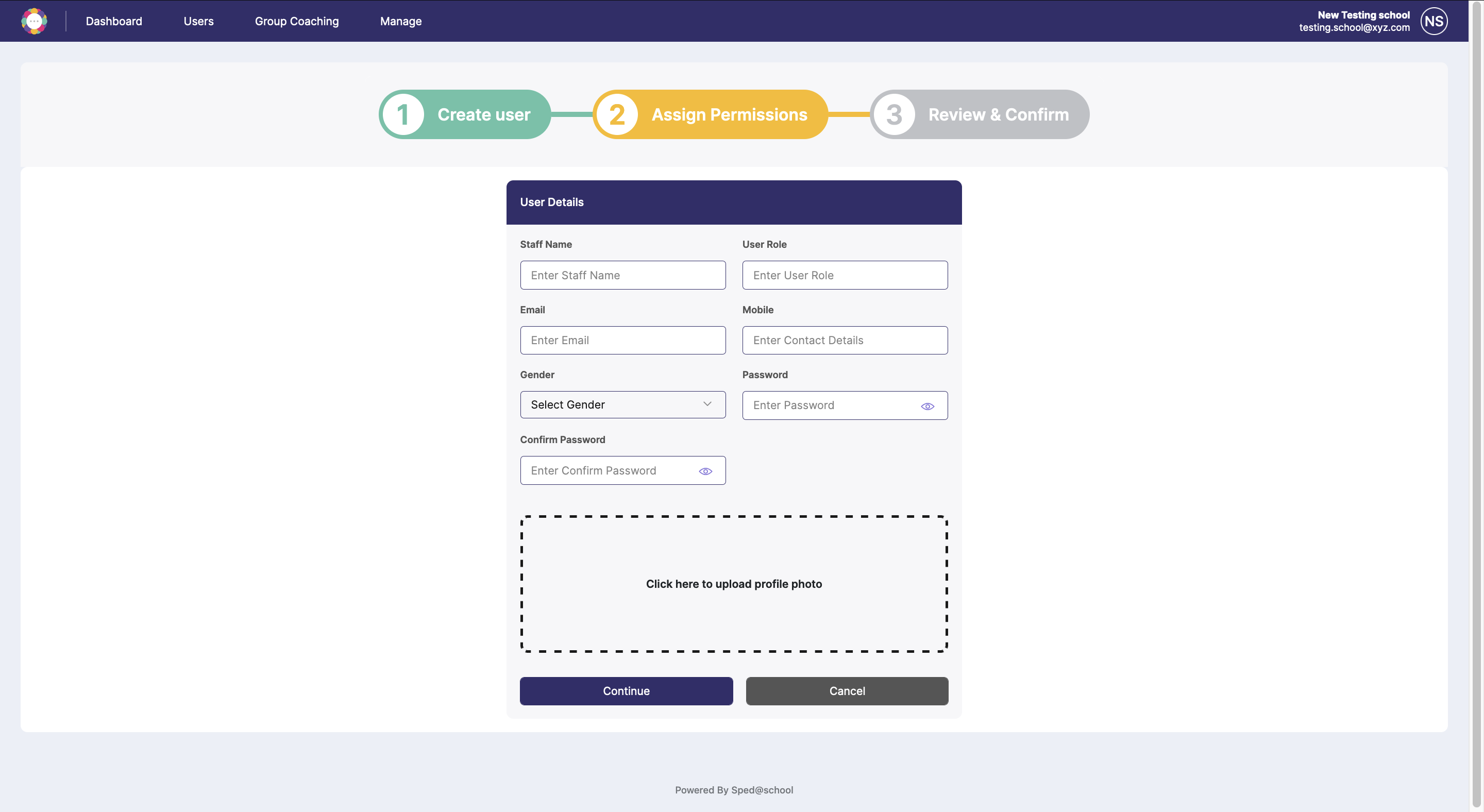
Fill in the coach’s basic information (name, email, phone, role).
Assign their role and choose which modules or features they can access.
Click “Save” to add them, or “Add Another” to continue.
After filling in the required details, you can either Add another coach or click Close to save the information.
Enter Details, Assign Roles and Set Permissions. After entering the coach details, assign their role and select the permissions you want to grant them. Finally, click ‘Save’ to complete the process.
Step 3: Edit or Update Coach Details
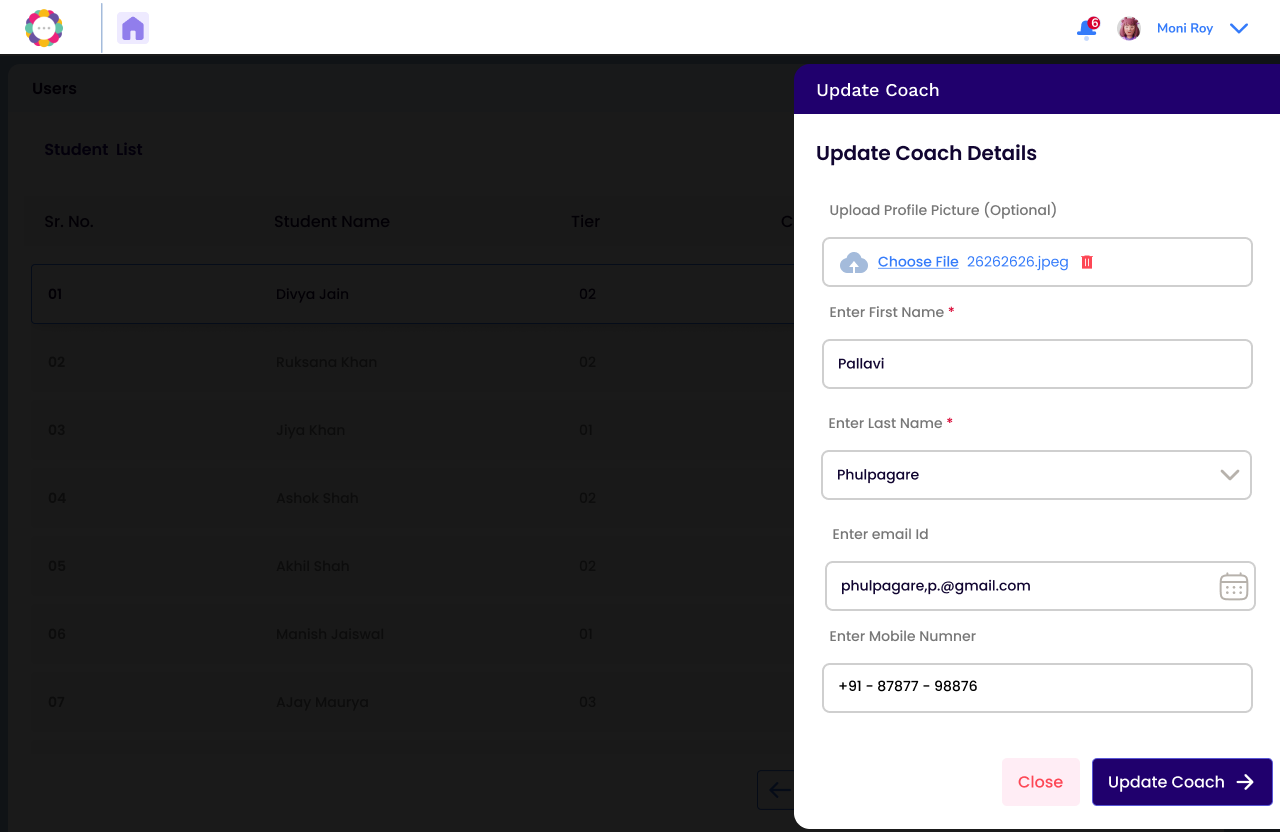
On the Coach List, click the pen (edit) icon next to a coach’s name.
Update the information as required.
Click “Update Coach” to save the changes.
Step 4. Delete a Coach
To delete a coach, click the bin icon next to their name.
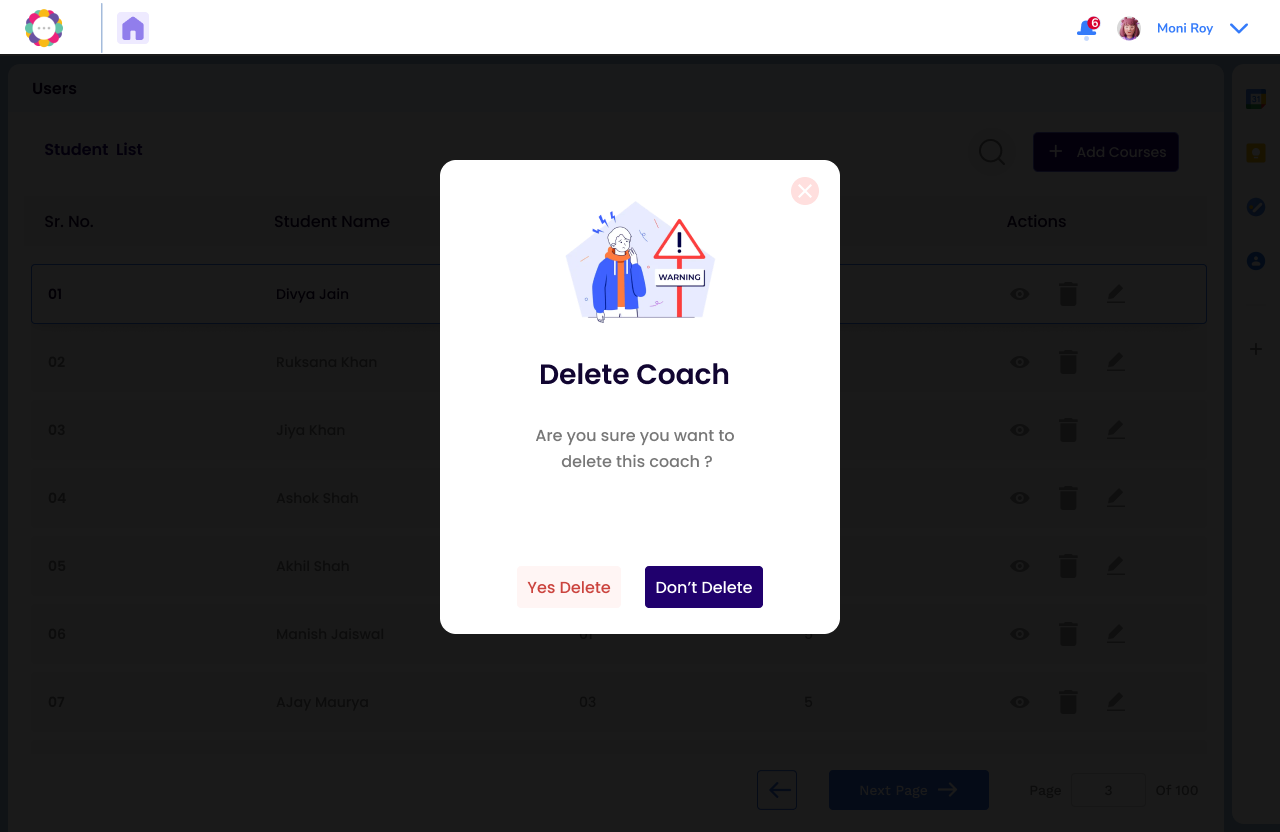
A confirmation message will appear.
Click “Yes, Delete” to remove the coach permanently.