Select the desired student, go to the Learning Plan section, and click on IEP
Each session is designed to target specific goals from the student’s Individualized Education Plan (IEP).
Sessions typically include two tasks each from a different learning area. If required, after completing both tasks an additional task can be added.
The tasks comprise of Concept Teaching, Practice and Revision and are unlocked in a sequence once the earlier phase is completed.
The coach can select a “Teaching Style” which is best suited to the student’s learning preferences. These teaching resources are available to the teacher in the form of a Story, Rhyme or Activity.
Track progress at the top.
Click “Save Session” after completing the session.
Designed to improve reading comprehension and vocabulary.
Students can read or listen to the story.
“Story” tab is selected (other options: Poem, Activity, Download Worksheet).
Themes like courage and curiosity enhance engagement.
“Mark as Read” button confirms completion before follow-up tasks.
Part of the Reading Concept section to support fluency and understanding.
Tabs can be adjusted by the expert based on the child’s interest and learning style for a personalized experience.
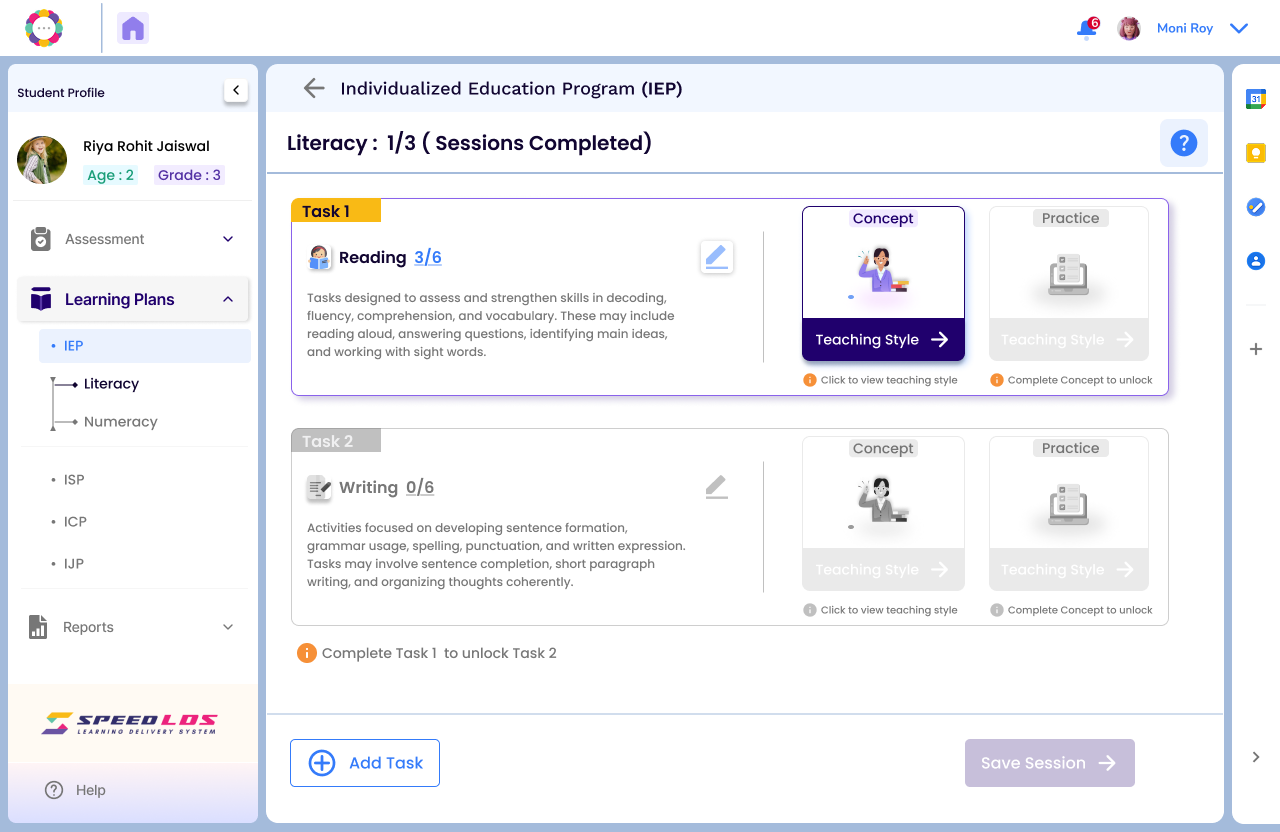
Below screen shows IEP progress for Literacy tasks.
Task 1 (Reading) is marked as Completed – both Concept and Practice are done.
“Play Worksheet” confirms that practice was completed via an interactive worksheet.
Task 2 (Writing) is now unlocked – the Concept section is ready with a “Teaching Style” option.
Practice will unlock after completing the Concept part.
Purpose: Enables teachers to track progress and move step-by-step through IEP goals.
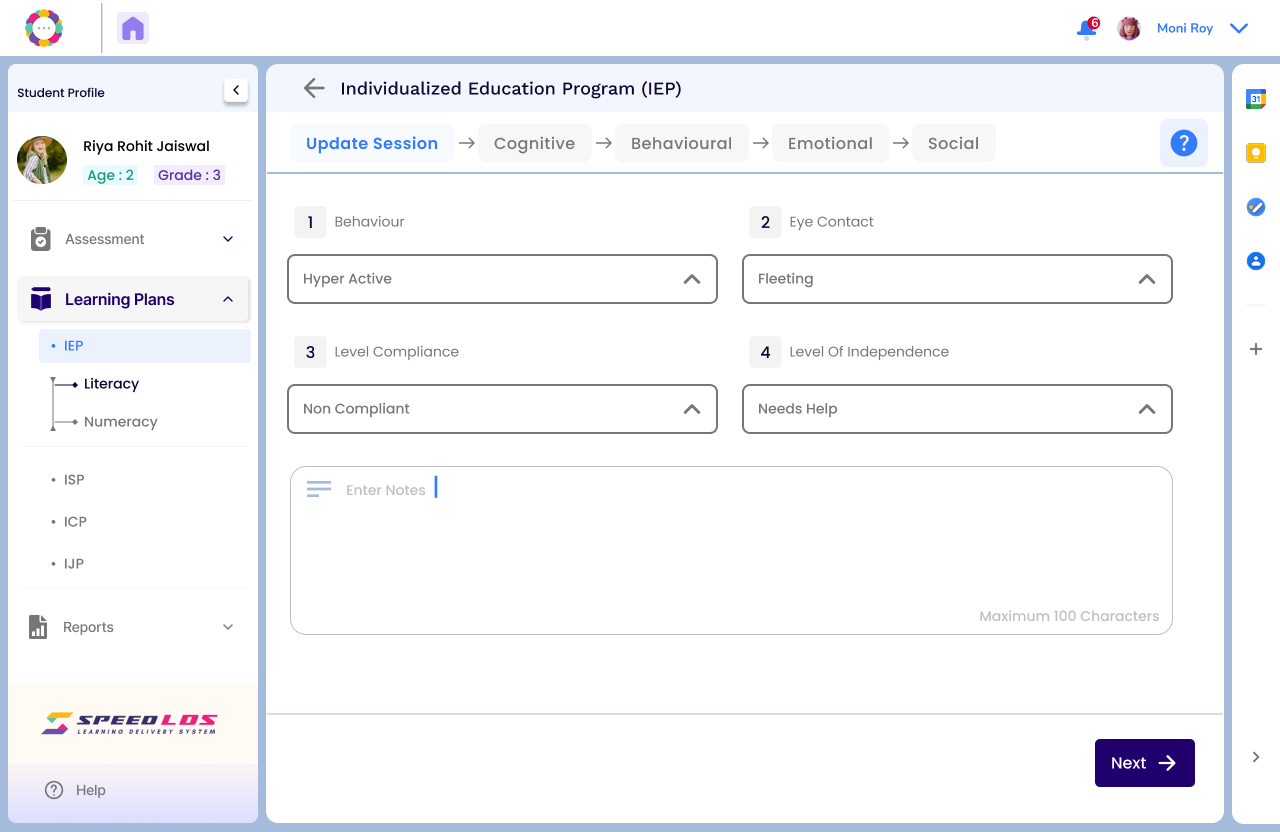
Teachers can update session observations across four domains: Cognitive, Behavioral, Emotional, and Social.
Current screen shows Behavioral domain with inputs like:
Behaviour: Hyperactive
Eye Contact: Fleeting
Compliance: Non-Compliant
Independence: Needs Help
Notes section available for additional comments.
Click “Next” to proceed to the next domain.
Purpose: To document student behavior and track progress for personalized support.
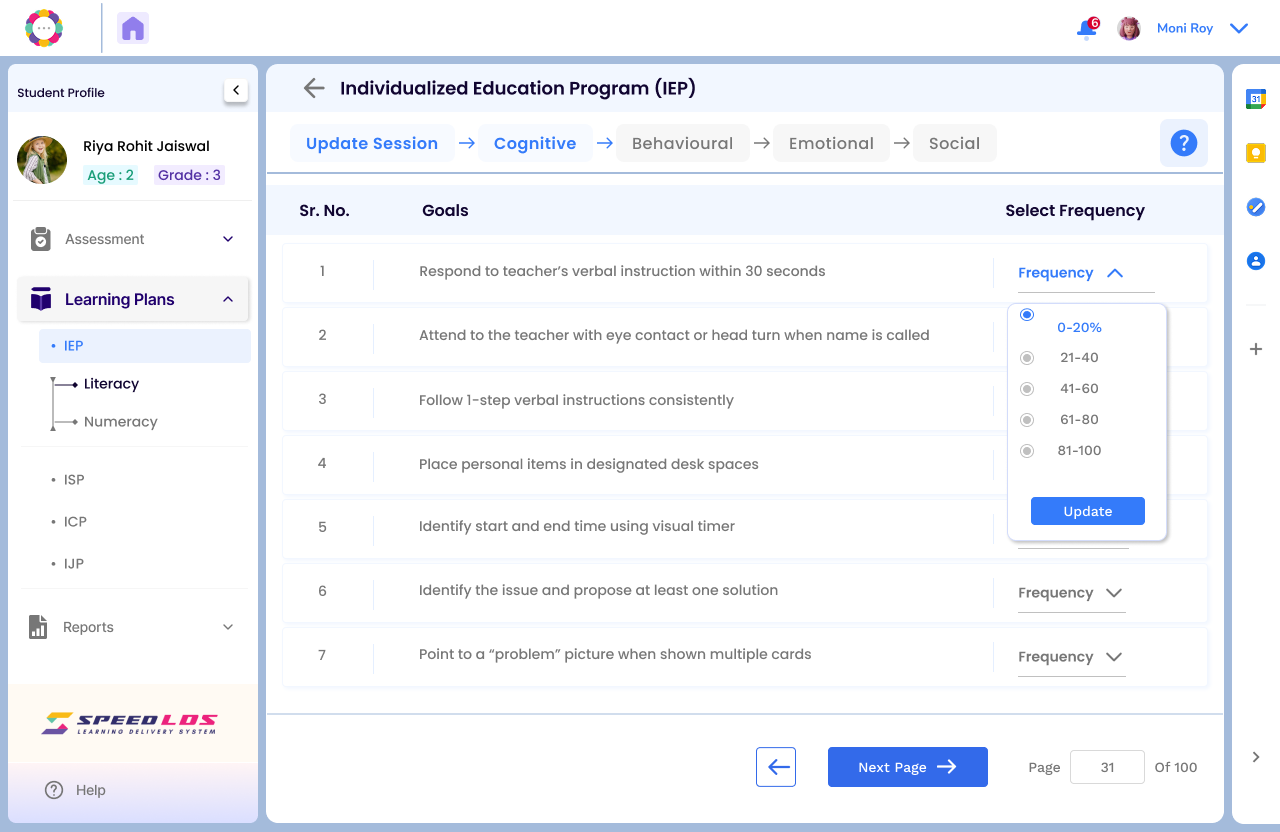
This is the Cognitive domain under the IEP.
Select the frequency of goal achievement based on the session.
Click “Update” to save.
Use Next Page to continue. We’ll follow the same process for Behavioral, Emotional, and Social next.
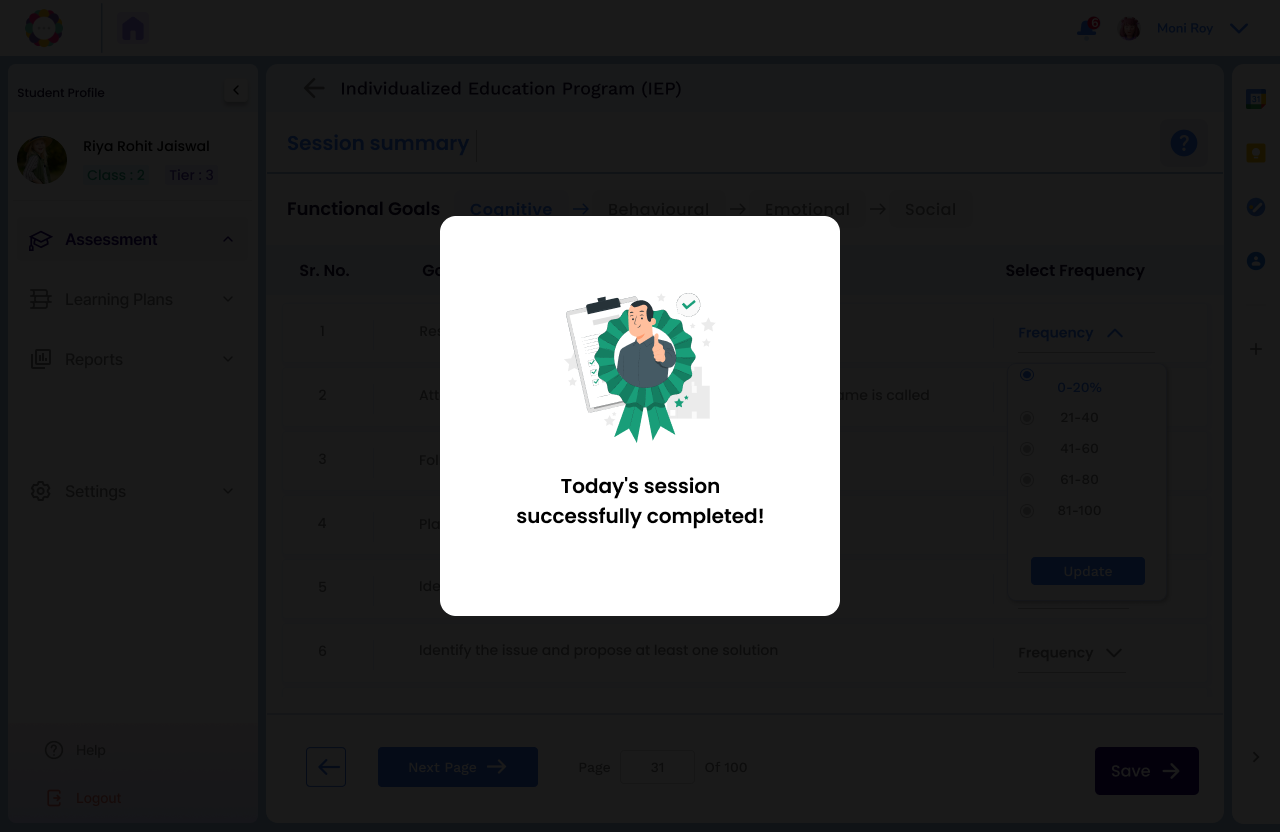
Once the coach or admin completes the session, the screen below will appear, showing all the session details and a message confirming that the session has been successfully completed.
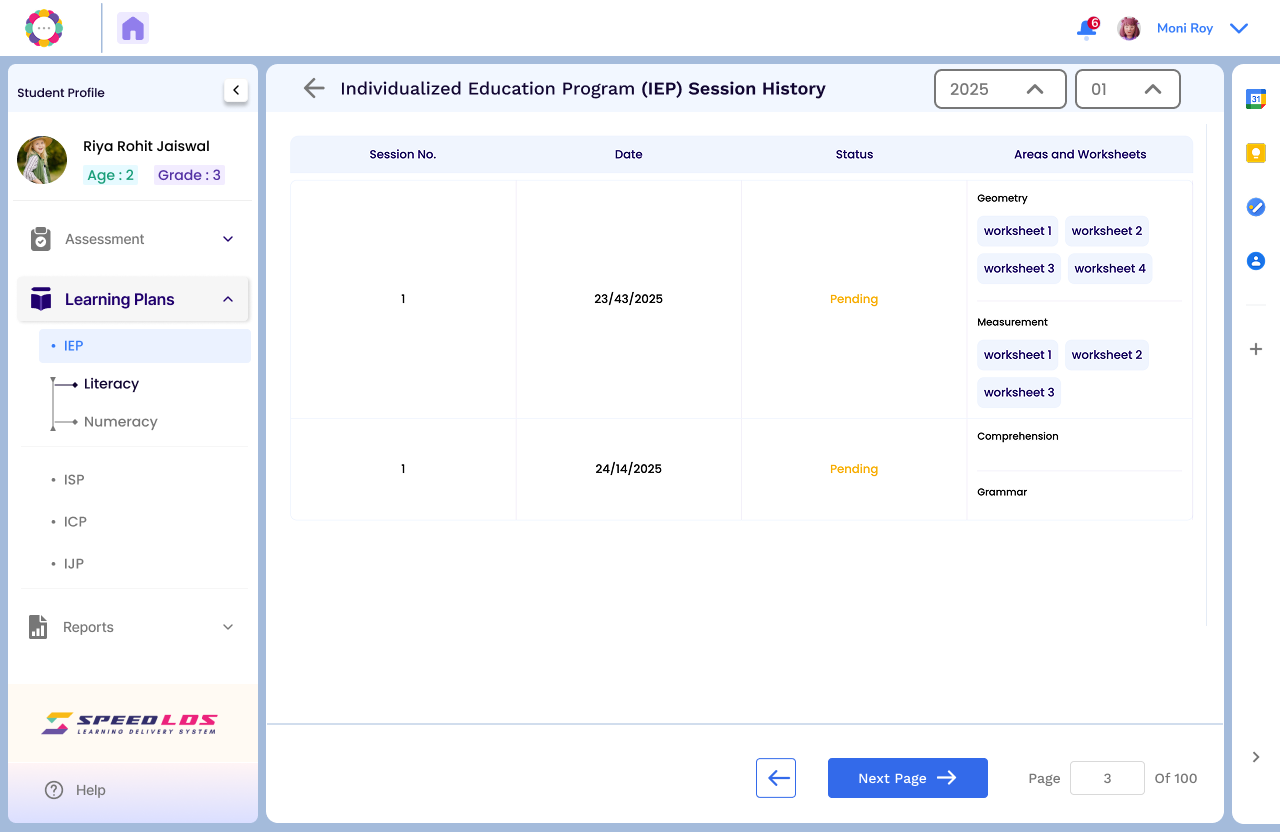
Session History
The teacher can click on View History on the top right of the page to access and see earlier performance or type of worksheets responded to by the student.
This feature is available only after the student has completed a minimum of four sessions.
The worksheets completed by the student will be shown in the History section.
Teacher can click any worksheet to view how the student has fared on it.