Create Individualized Educational Plan

Individualized Education Plan (IEP)

The Individualized Education Plan (IEP) allows for customized educational roadmaps tailored to each student’s unique learning needs.

Core Features:

  • Auto-Generation & Manual Creation: Teachers can either create IEPs manually or let the system auto-generate them based on assessment results.

  • Functional Goal Setting: Includes a wide range of cognitive, behavioral, emotional, and social goals that align with the student’s developmental requirements.

  • Tier & Curriculum Adjustment: Teachers can modify the child’s Tier level and align content with specific academic standards.

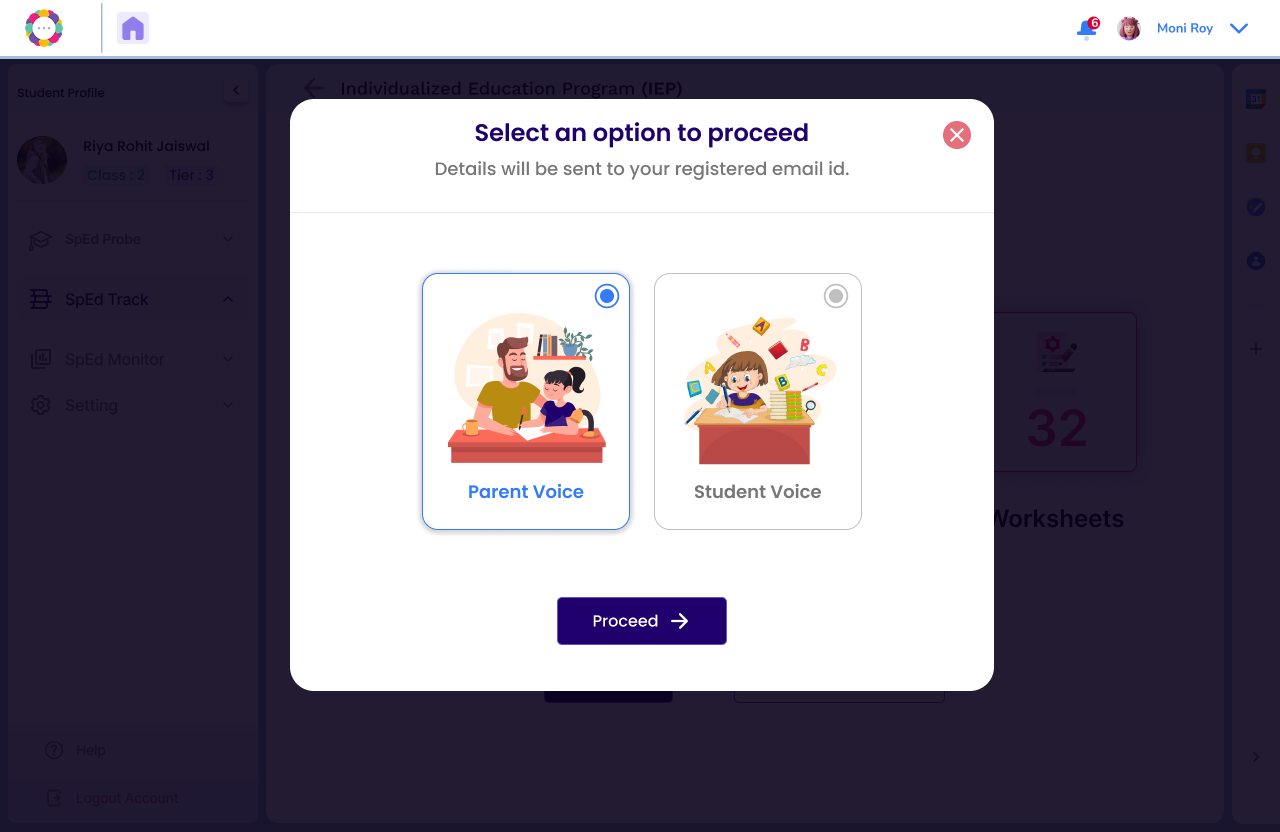
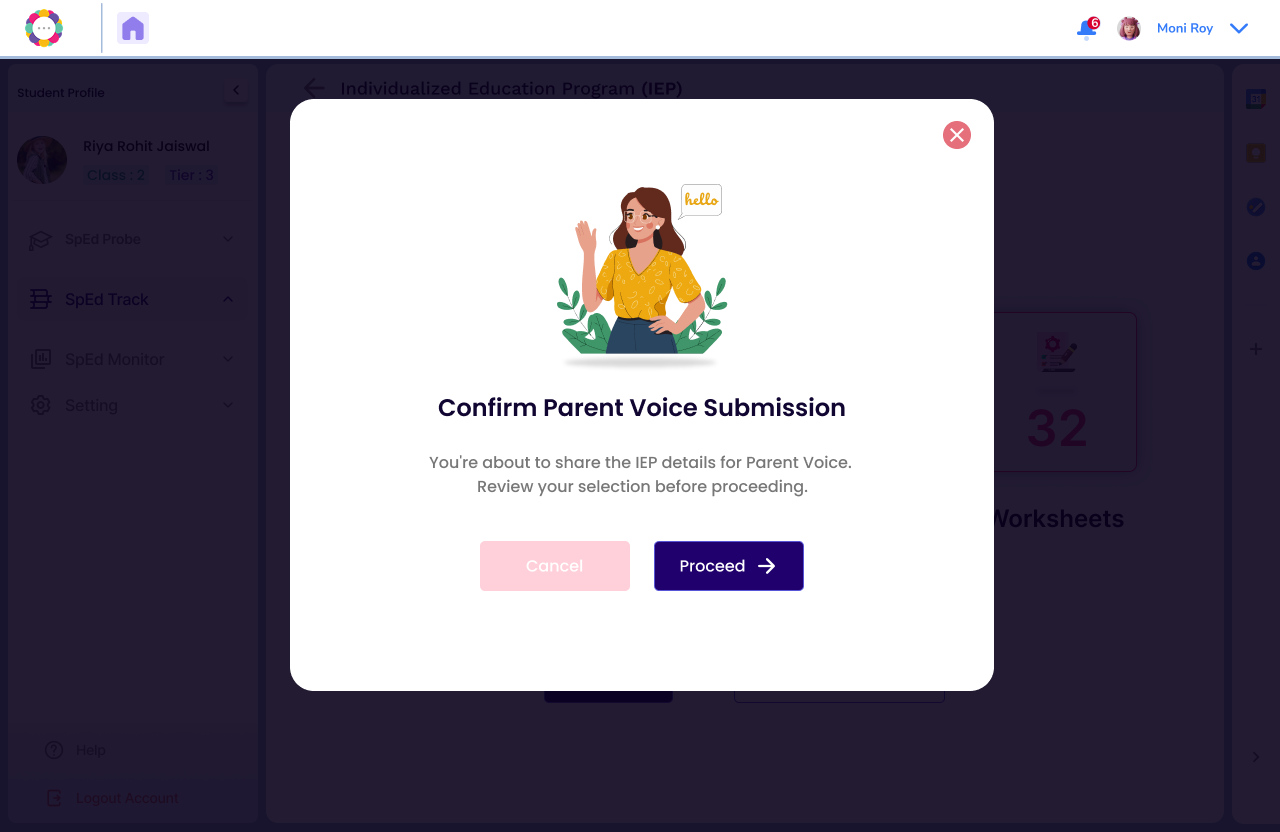
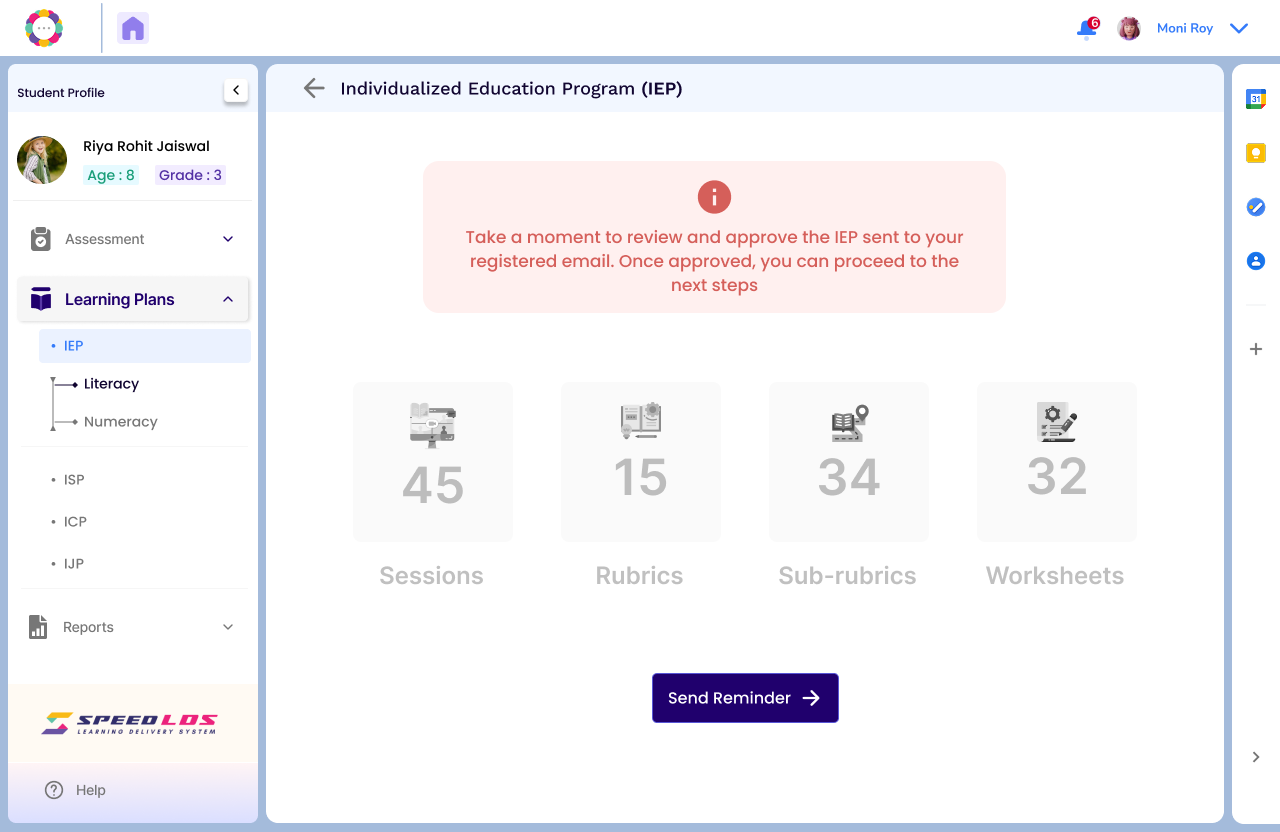
  • Parent Voice: Once created, teacher can share the IEP plan with the parent for approval. The IEP is activated once parent approves.

  • Progress Monitoring: Automatically tracks child’s progress against IEP goals and provides alerts when revisions are needed.

  • Running records: Enables educators to evaluate the effectiveness of IEPs over time, with history logs of past versions.

  • Inclusive Collaboration: Allows multiple stakeholders (teachers, specialists, parents) to contribute feedback and suggestions within the platform.

  • Printable IEP Reports: Download and share IEP plans for meetings or record-keeping in a structured, formalized format.
Create an Individualised Educational Plan (IEP):

Login to Dashboard. Go to the Student section

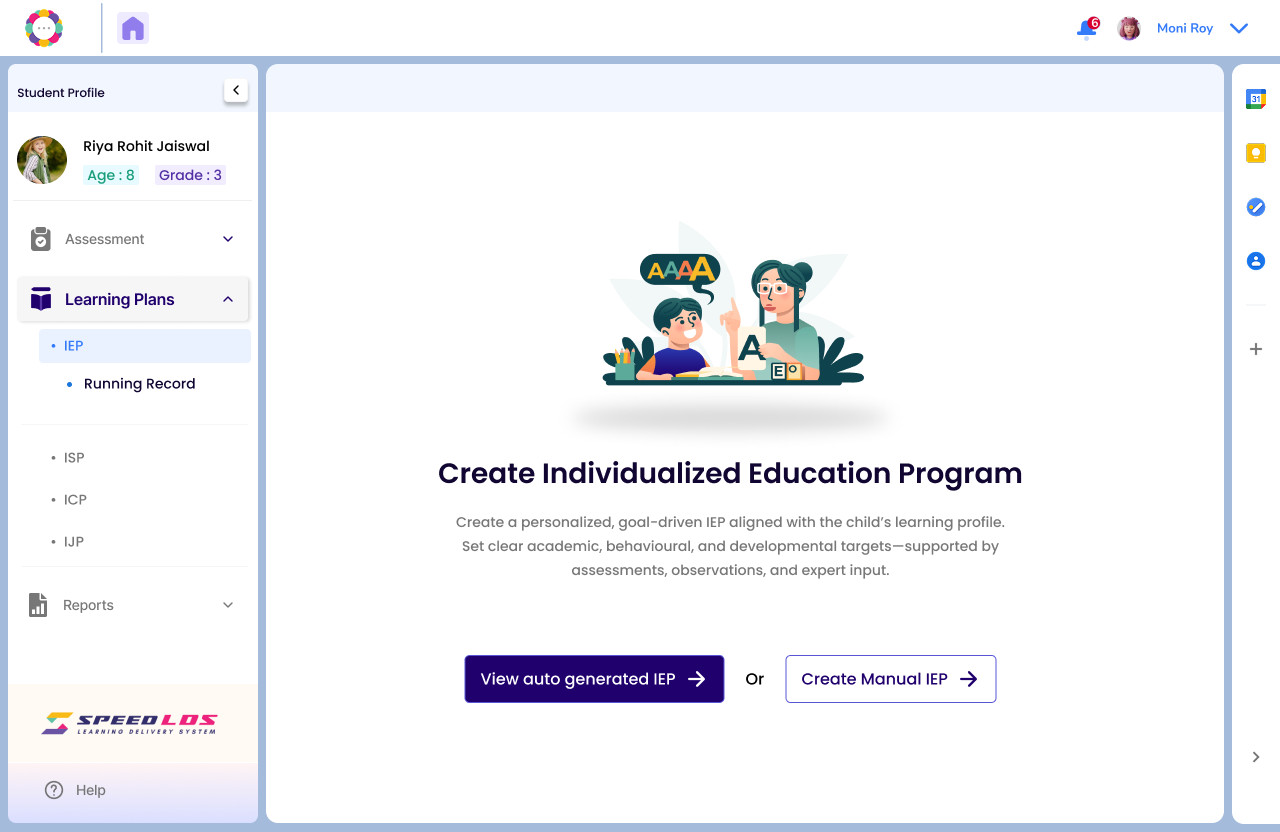
Select the desired student, go to the Learning Plan section on the left panel and click on IEP.

SpEd Track creates an auto generated IEP based on the scores of the student’s educational assessment.

Teachers can either choose to go with the auto plan or create their own IEP based on their understanding and classroom interaction with the student.

To create a manual IEP:

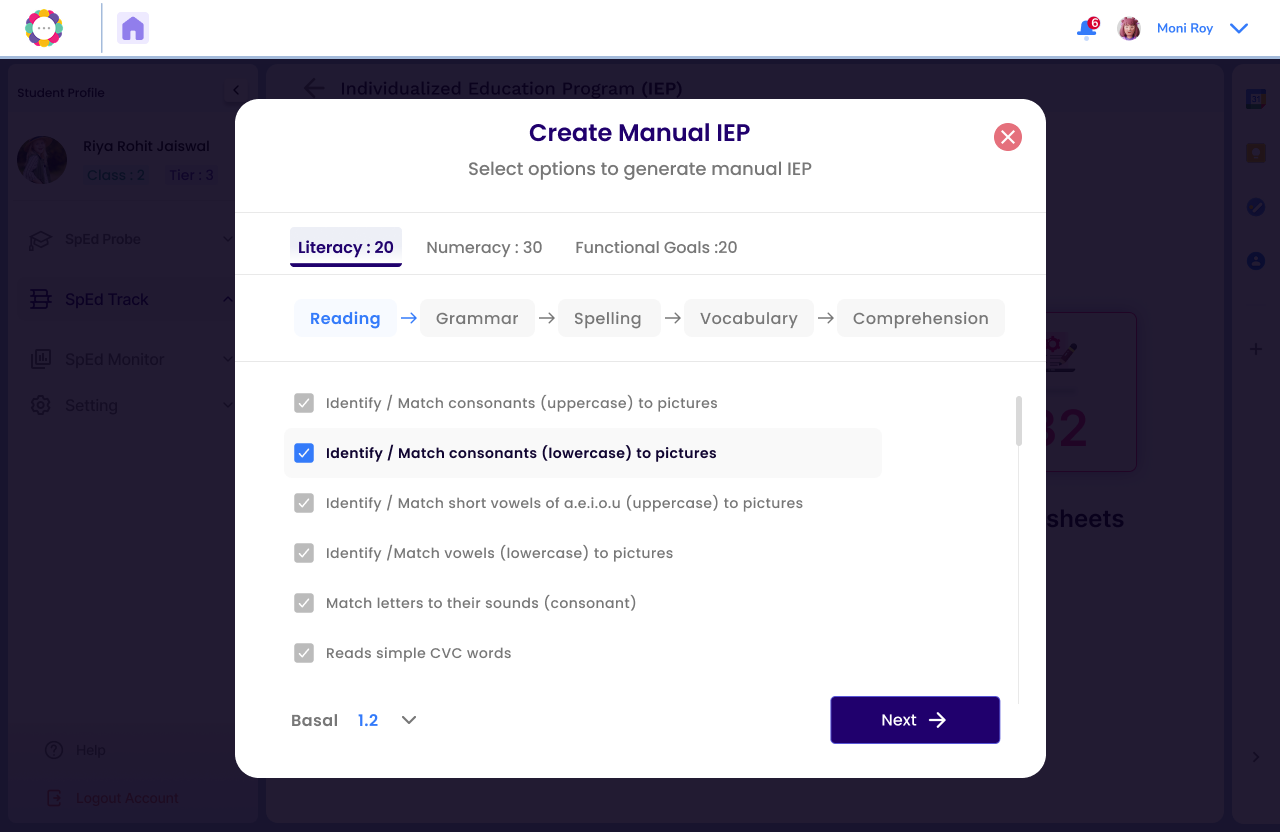
  • The screen below is used to create a manual IEP by selecting skill-based goals for the student.

  • Currently, you’re in the Literacy → Reading section.

  • You can choose specific reading goals such as:

    • Matching consonants (uppercase/lowercase) to pictures

    • Identifying vowels

    • Reading simple CVC words

  • The selected goal here is: “Identify / Match consonants (lowercase) to pictures”.

  • The Basal level (1.2) indicates the student’s current performance level.

  • Click Next to continue to the next skill area (e.g., Grammar).

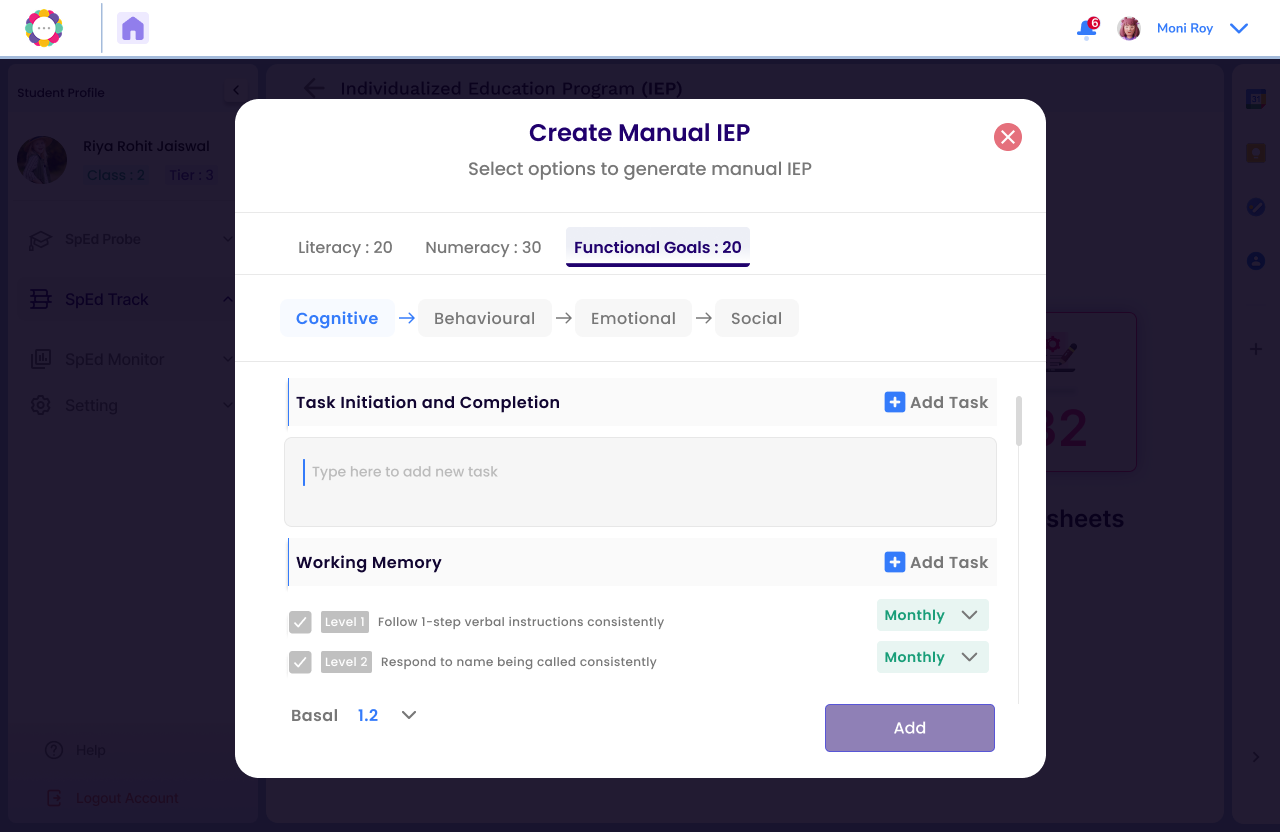
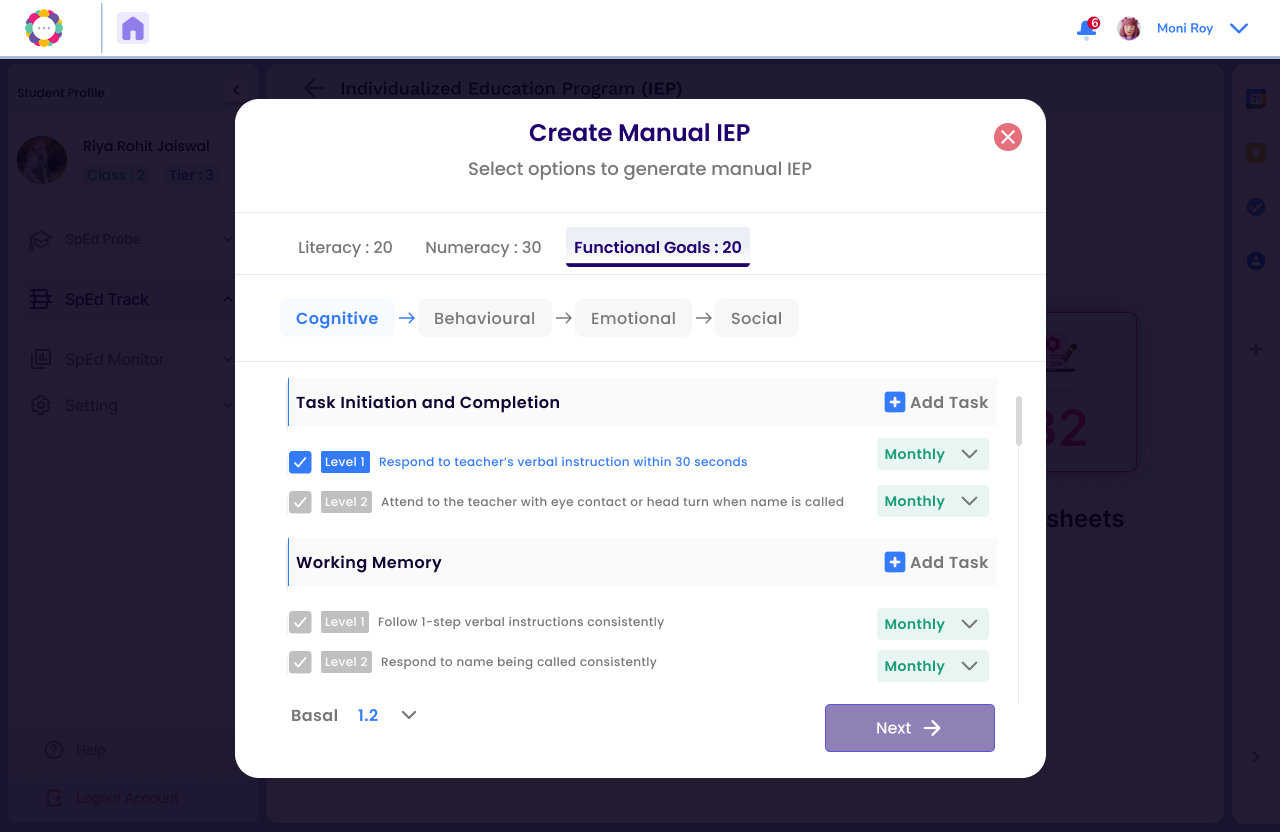
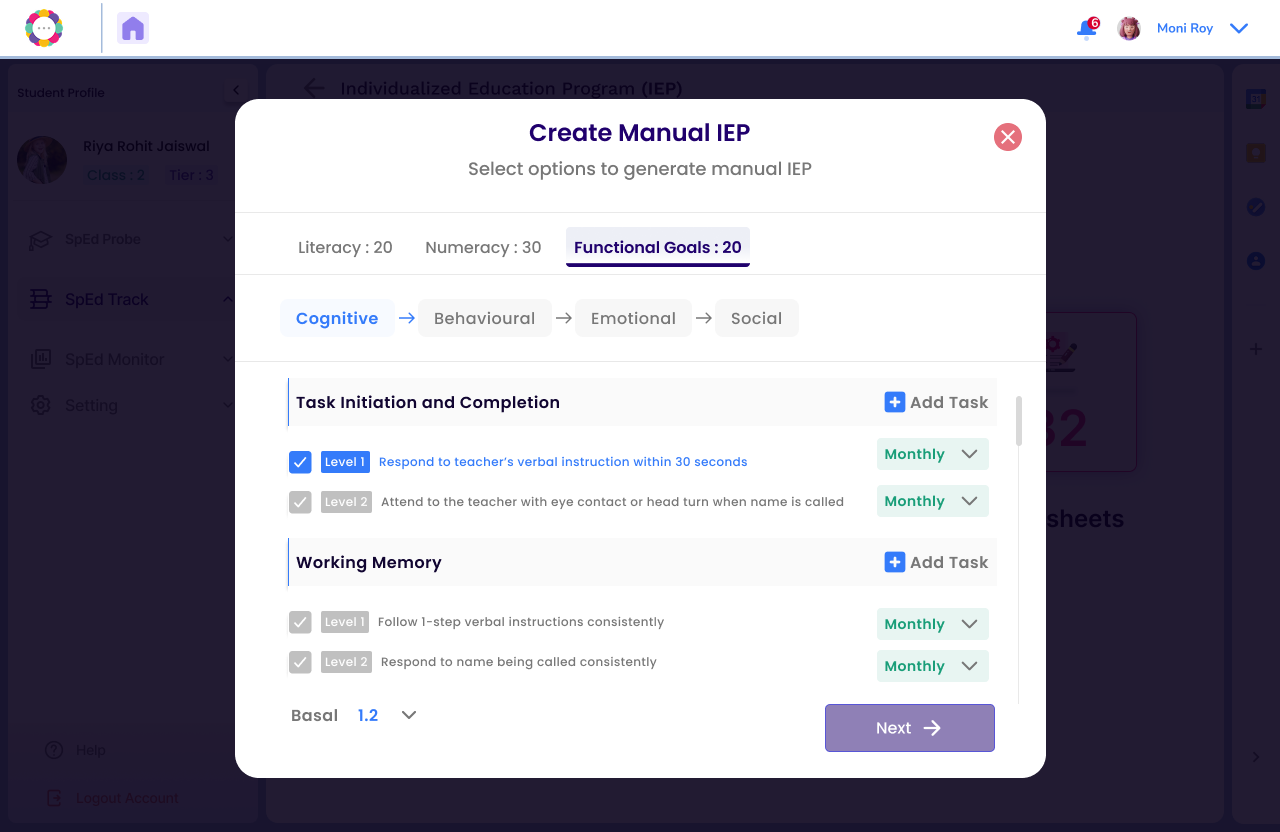
Below section helps teachers manually select IEP goals based on the student’s current skill level (Basal 1.2).

  • In the Literacy → Reading section, teachers can select foundational reading goals like matching lowercase consonants to pictures.

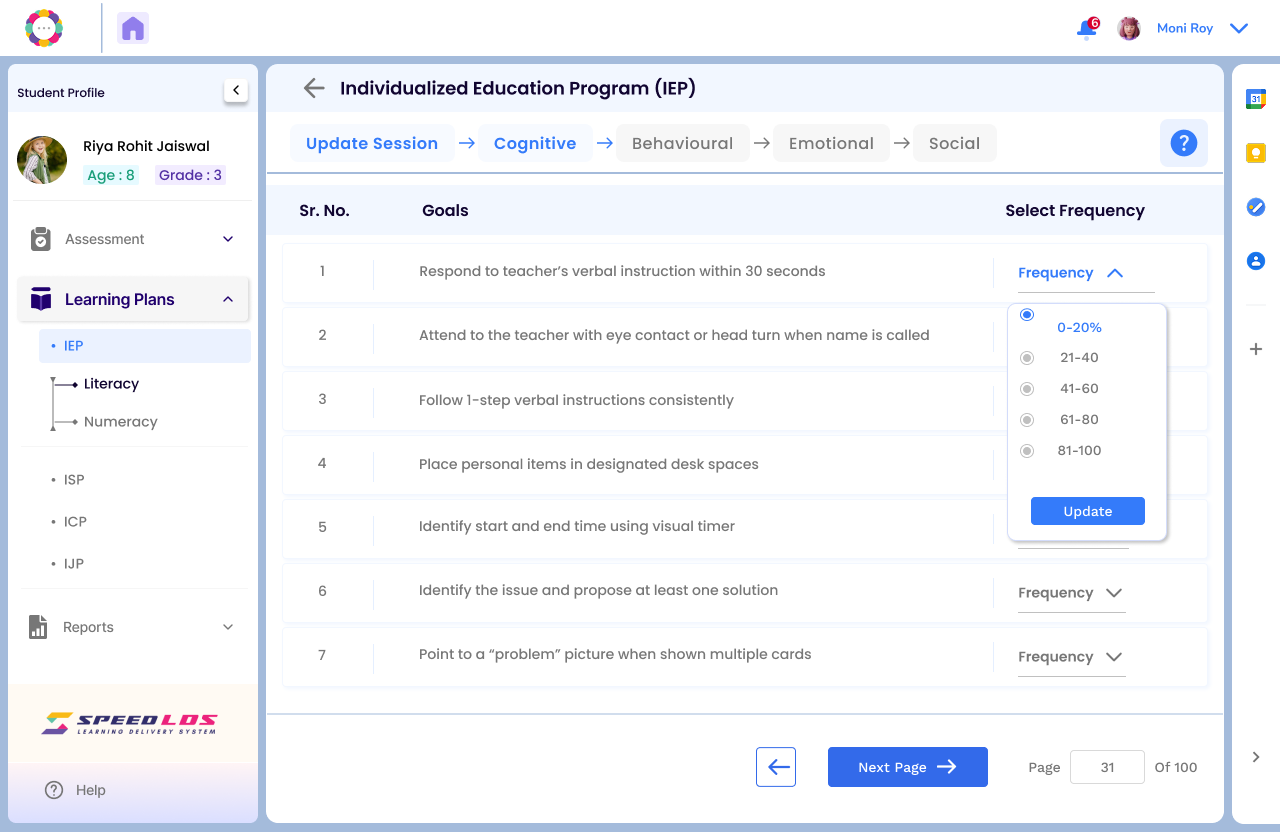
  • In the Functional Goals → Cognitive section, goals focus on classroom readiness—e.g., responding to verbal instructions or following 1-step commands.

  • Teachers can also add custom tasks and set tracking frequency (e.g., monthly) to monitor progress effectively.

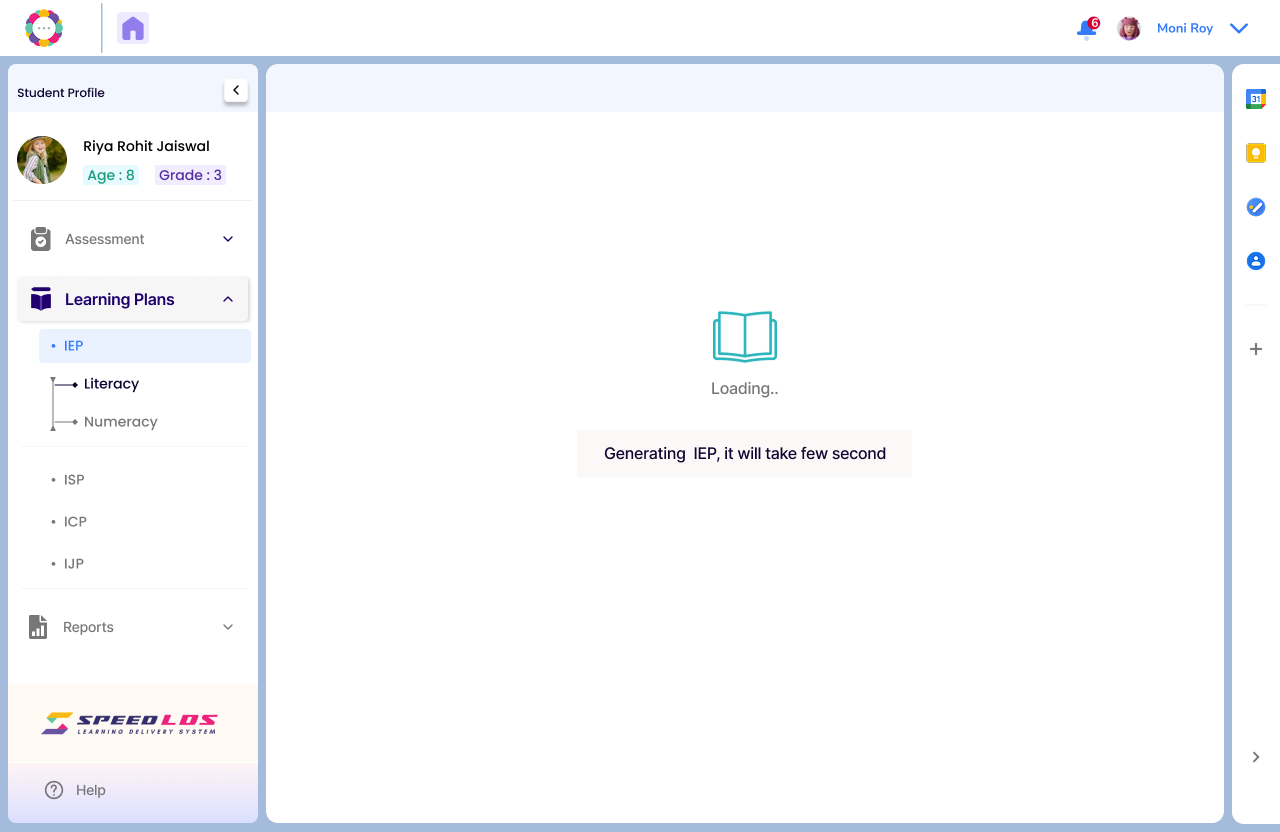
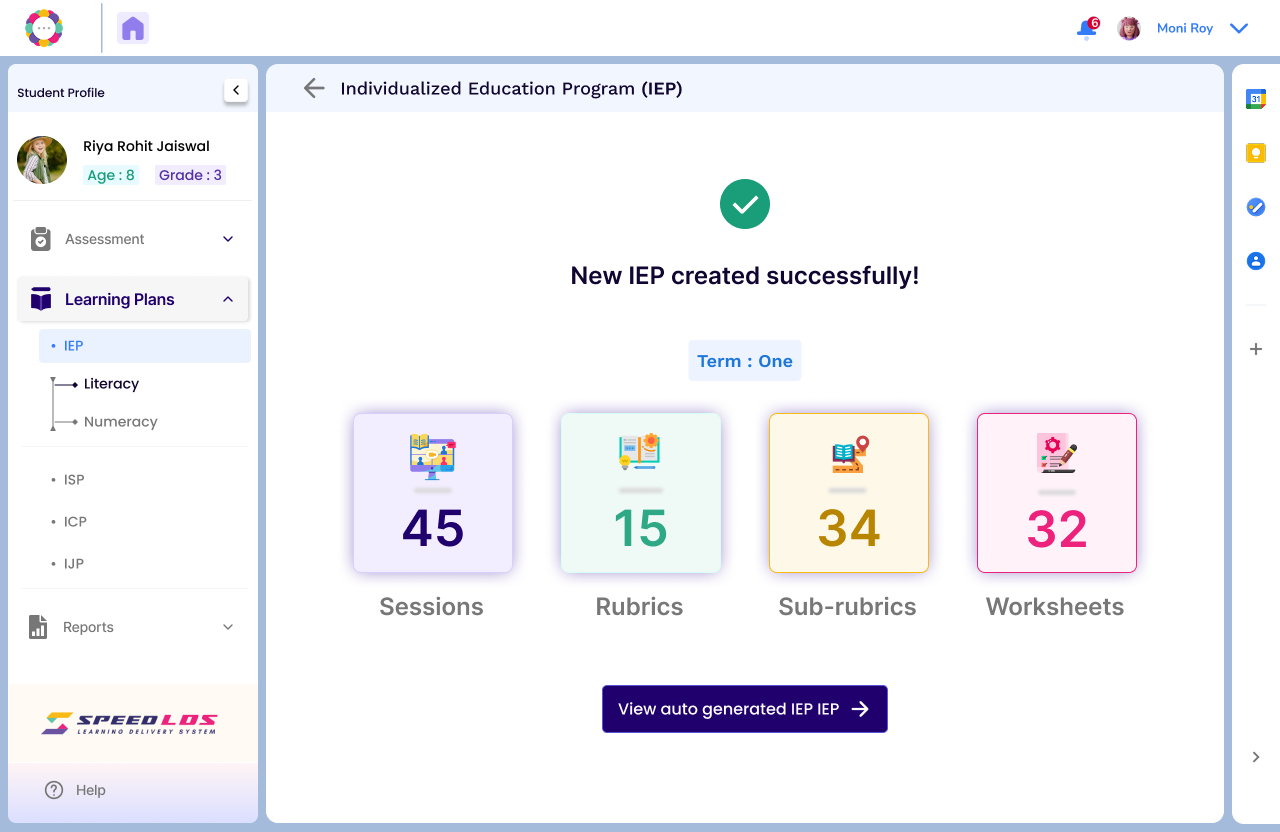
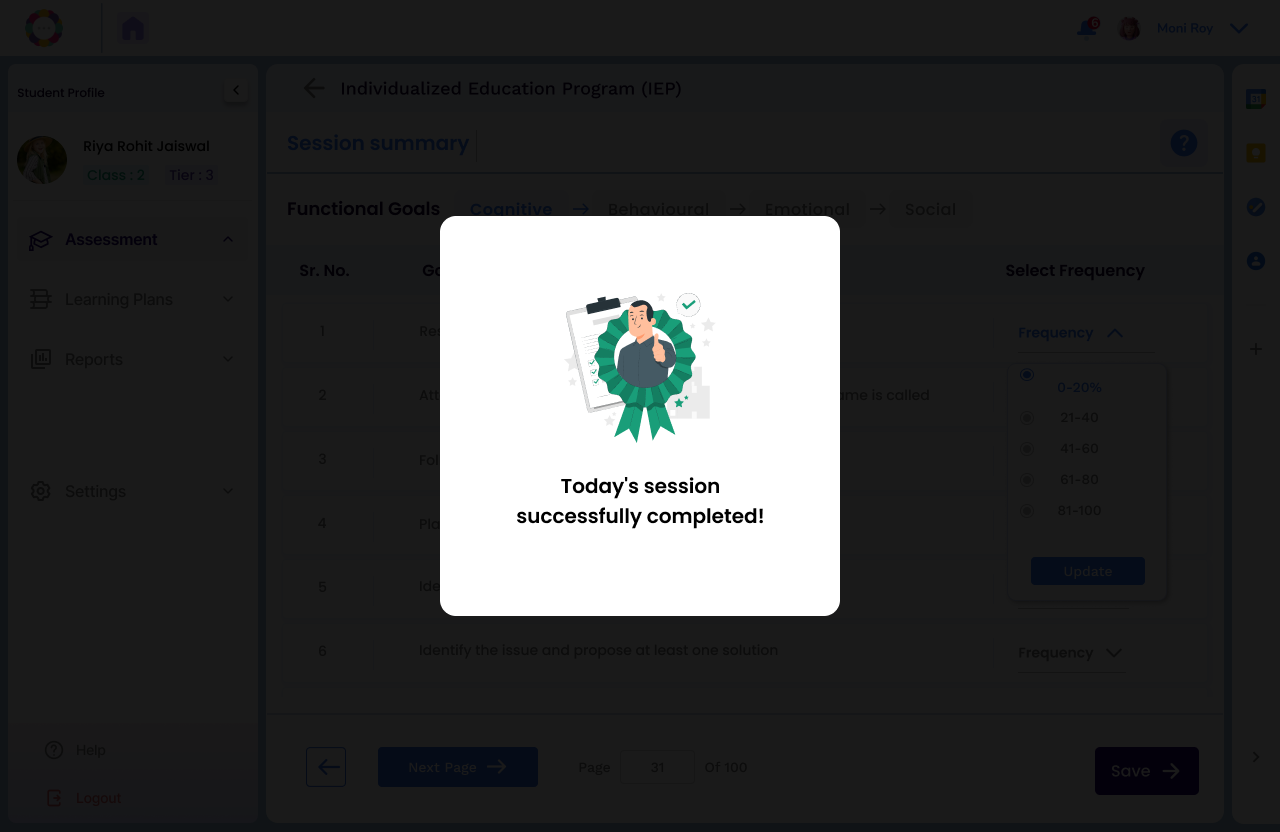
Once the coach selects all the goals, the system will take a moment to process, and then the screen shown below will appear.

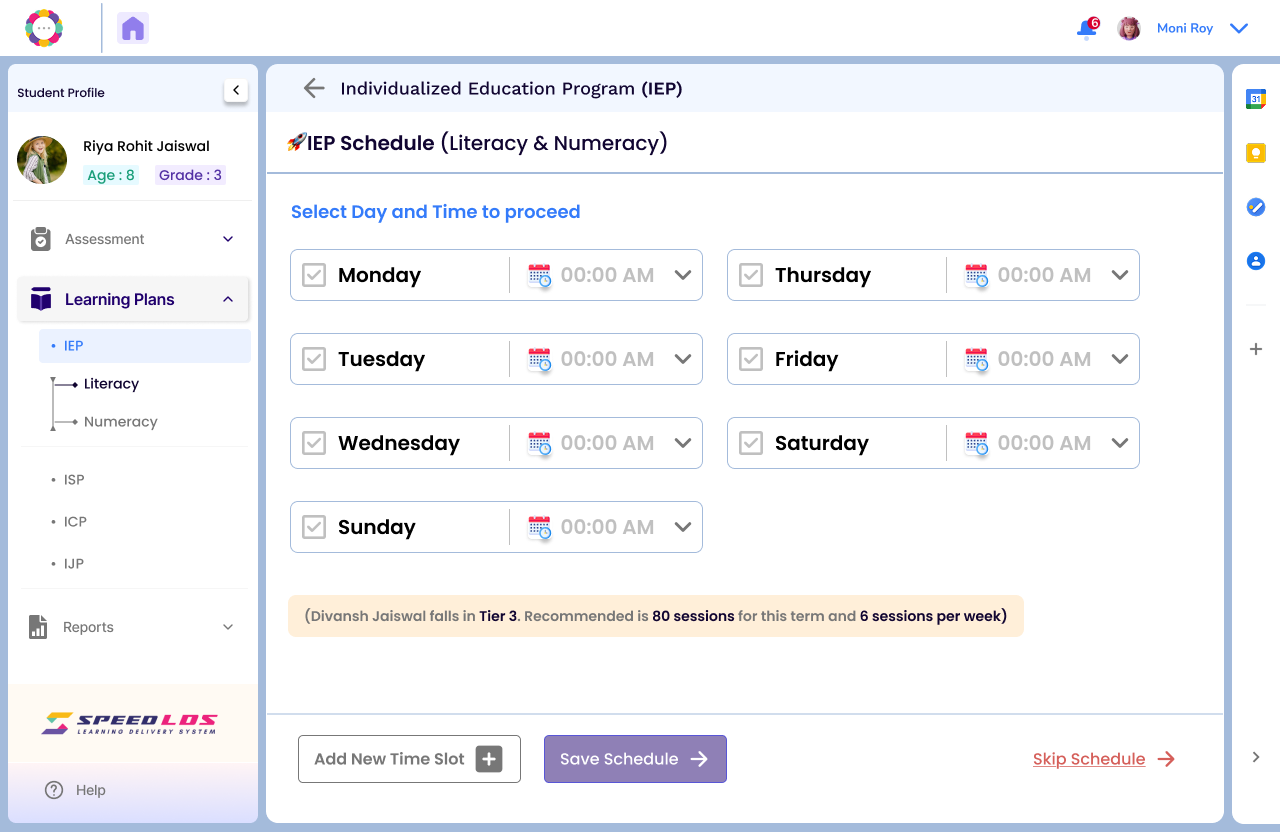
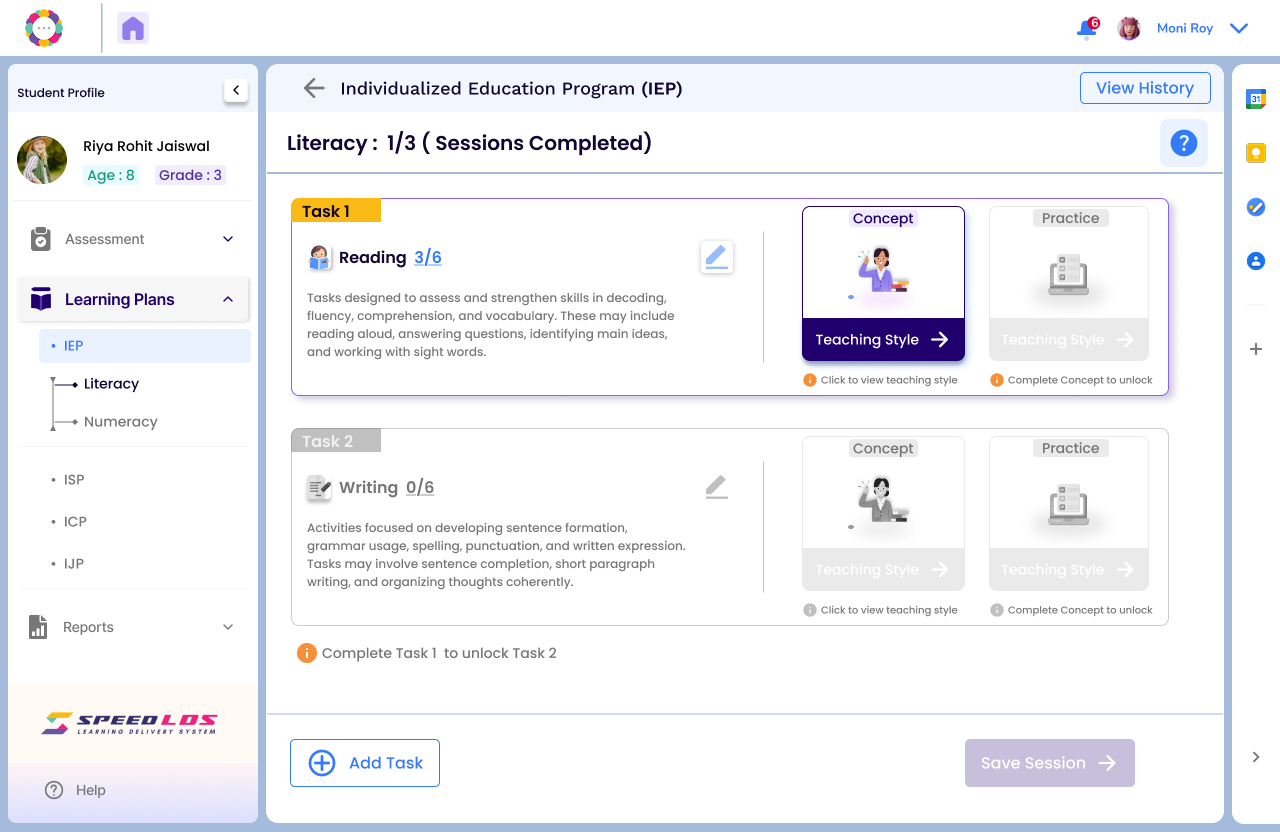
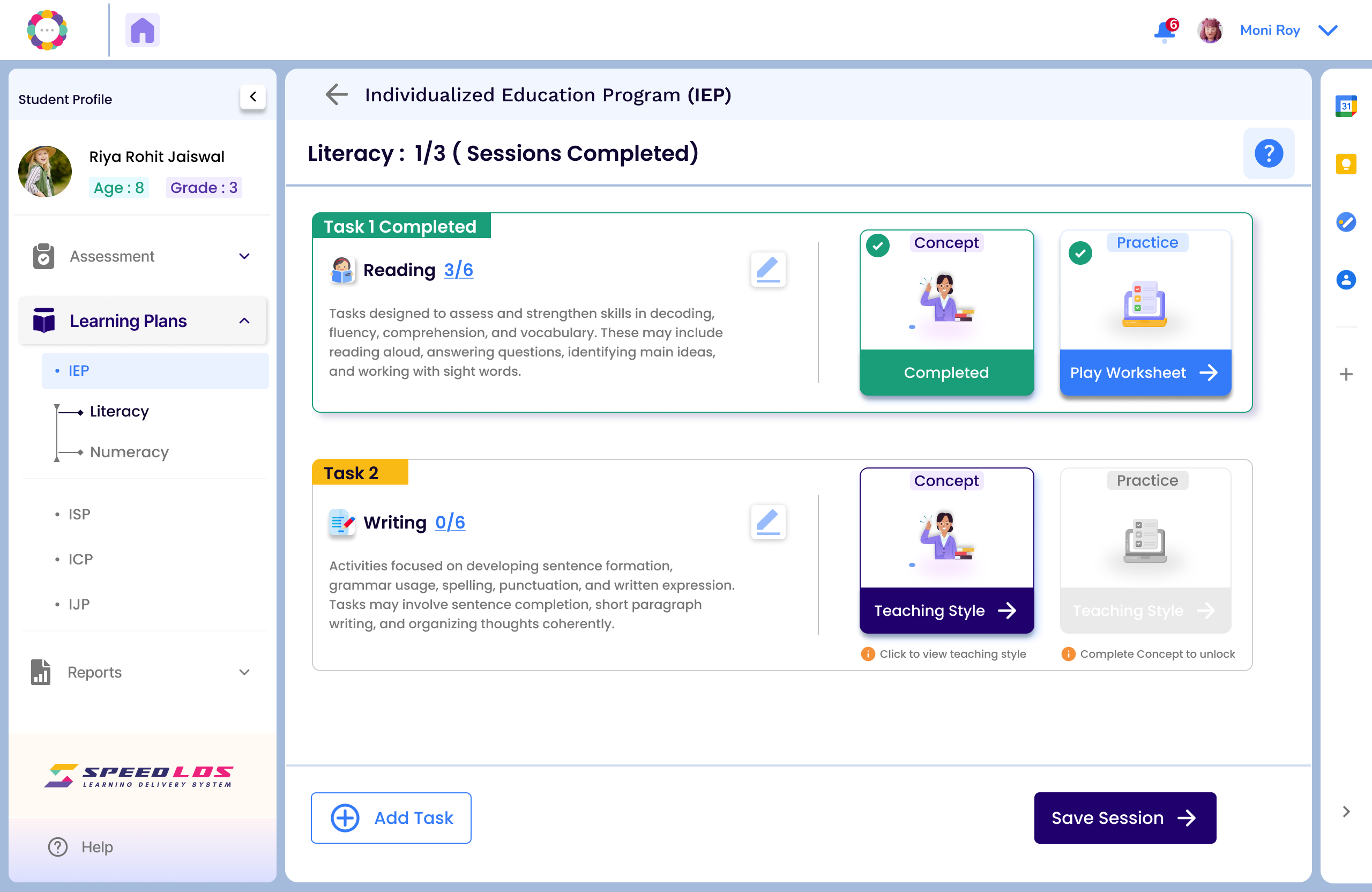
Next the coach and/or admin schedules the student’s IEP sessions for Literacy and Numeracy by selecting preferred days and time slots.

Parent Voice

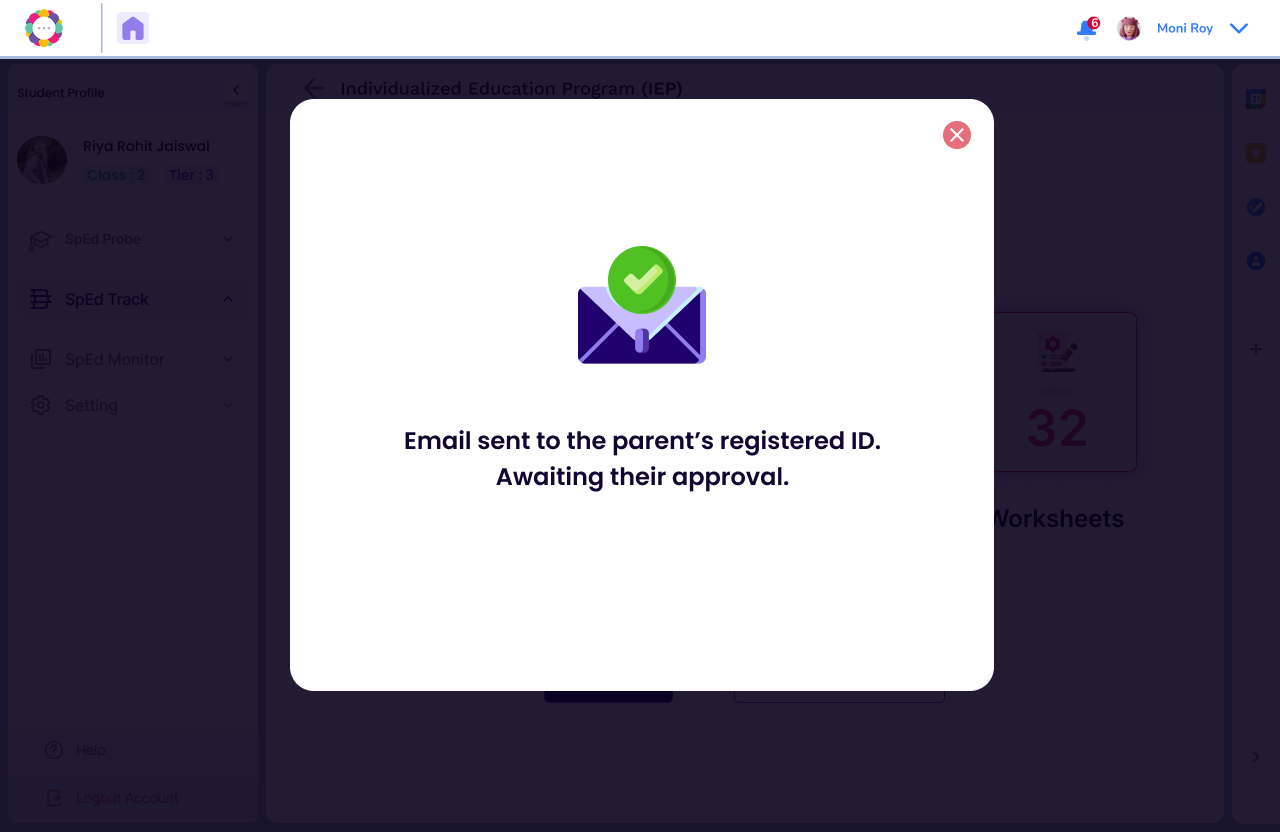
If this feature is enabled by the school, the system facilitates approval of IEPs via email notifications to parents.

The parents can revert with feedback or approval within 15 days of receiving the email.

Once the parents approve the IEP by mail, then the screen displays a message saying IEP is successfully created.